
Browse the guide
Estimates & e-signatures
Quote it, get it signed, turn it into an invoice – no back-and-forth.
An estimate is a quote the customer reviews and signs online. You can ask for a deposit at the moment they accept. An accepted estimate turns into an invoice with every line carried over.
Businesses that price a job before the work starts: contractors, event and service businesses, custom orders.
- Your billing tools are active on your account.
- The customer's email, so the review-and-sign link can be sent.
- Optional: your estimate number prefix under Billing settings → Invoice numbering & footer.
On this page
Quote the job
Build the estimate and send it for a signature.
Create an estimate
An estimate is a quote your customer can accept and sign online. Use it whenever the price needs a yes before the work starts: a job, a project, an order with options. Once accepted it converts into an invoice with every line carried over, so nothing is re-keyed.
- 1Go to Accept Payments → Estimates and click New estimate.
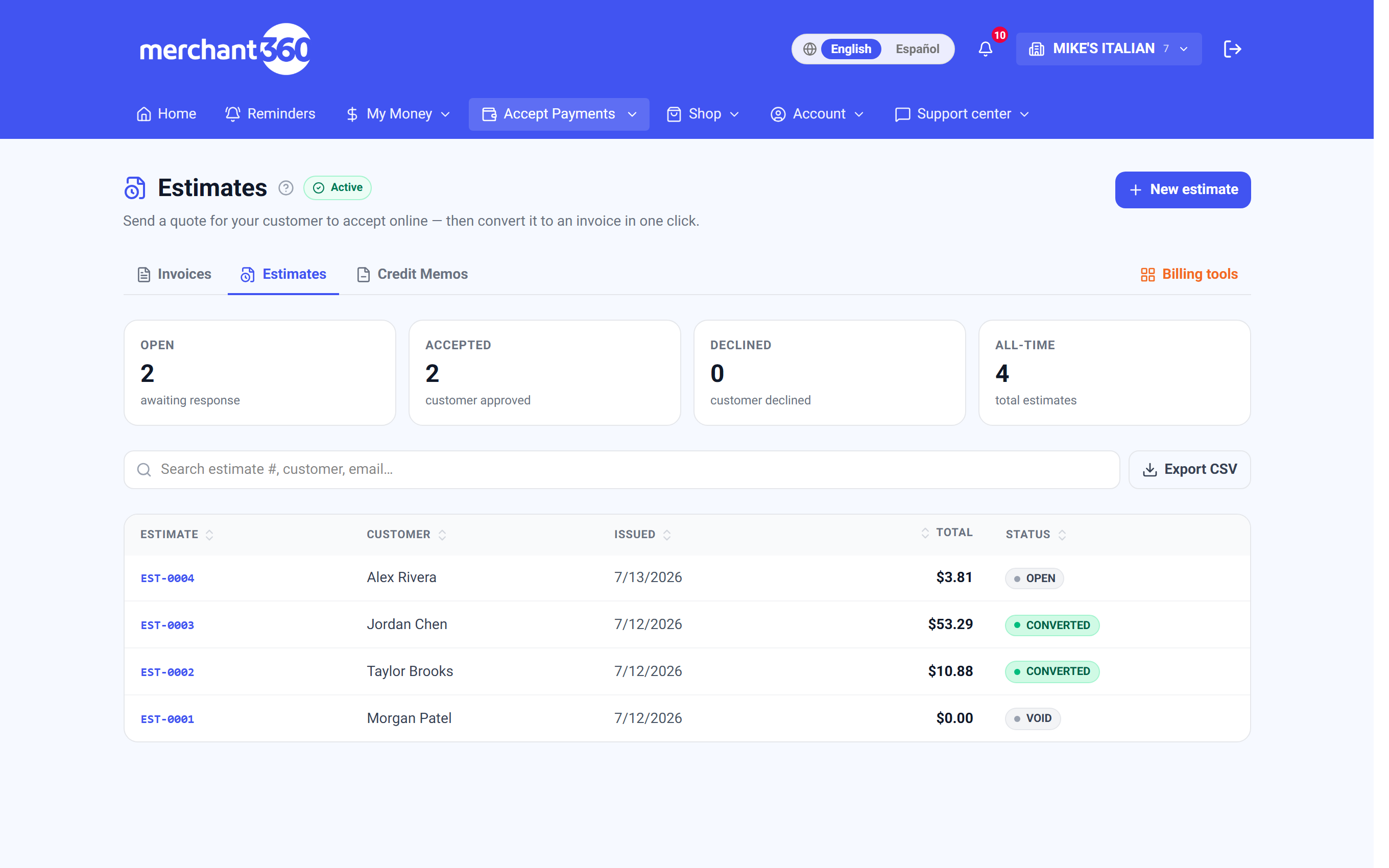
Accept Payments → Estimates. - 2Under Bill To, pick a saved customer or type a new one. Tick Save as new customer to keep them.
- 3Add your line items the same way as on an invoice: from the Catalog, or free text with a description, quantity and price.
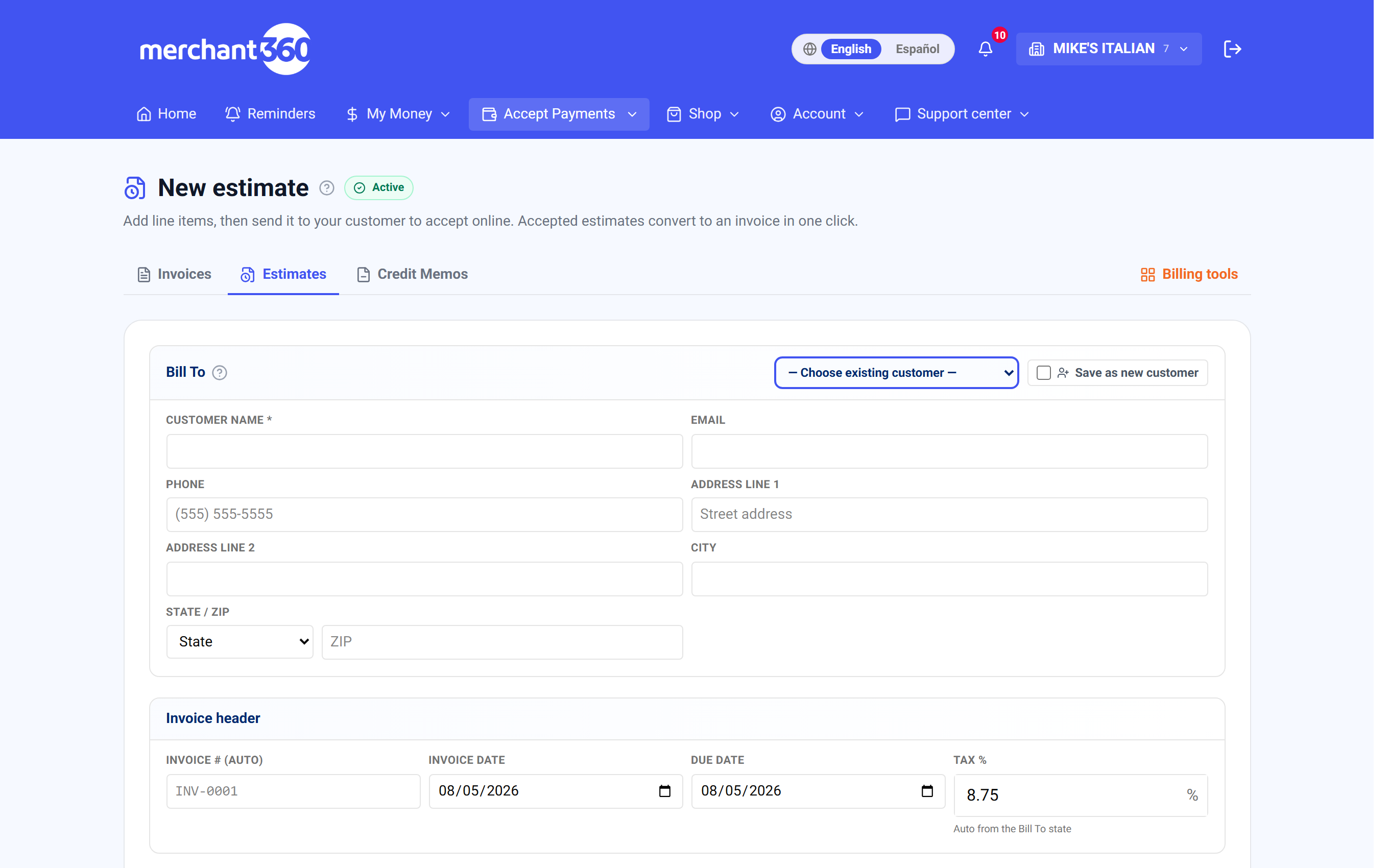
The estimate builder works like the invoice builder. - 4Set the Due date. It is the date the quote is good through; after it the estimate shows Expired.
- 5Under Require a deposit to accept?, pick the Deposit type: No deposit, Flat amount ($), Percent of total (%) or Full amount up front. The form shows Customer pays X to accept.
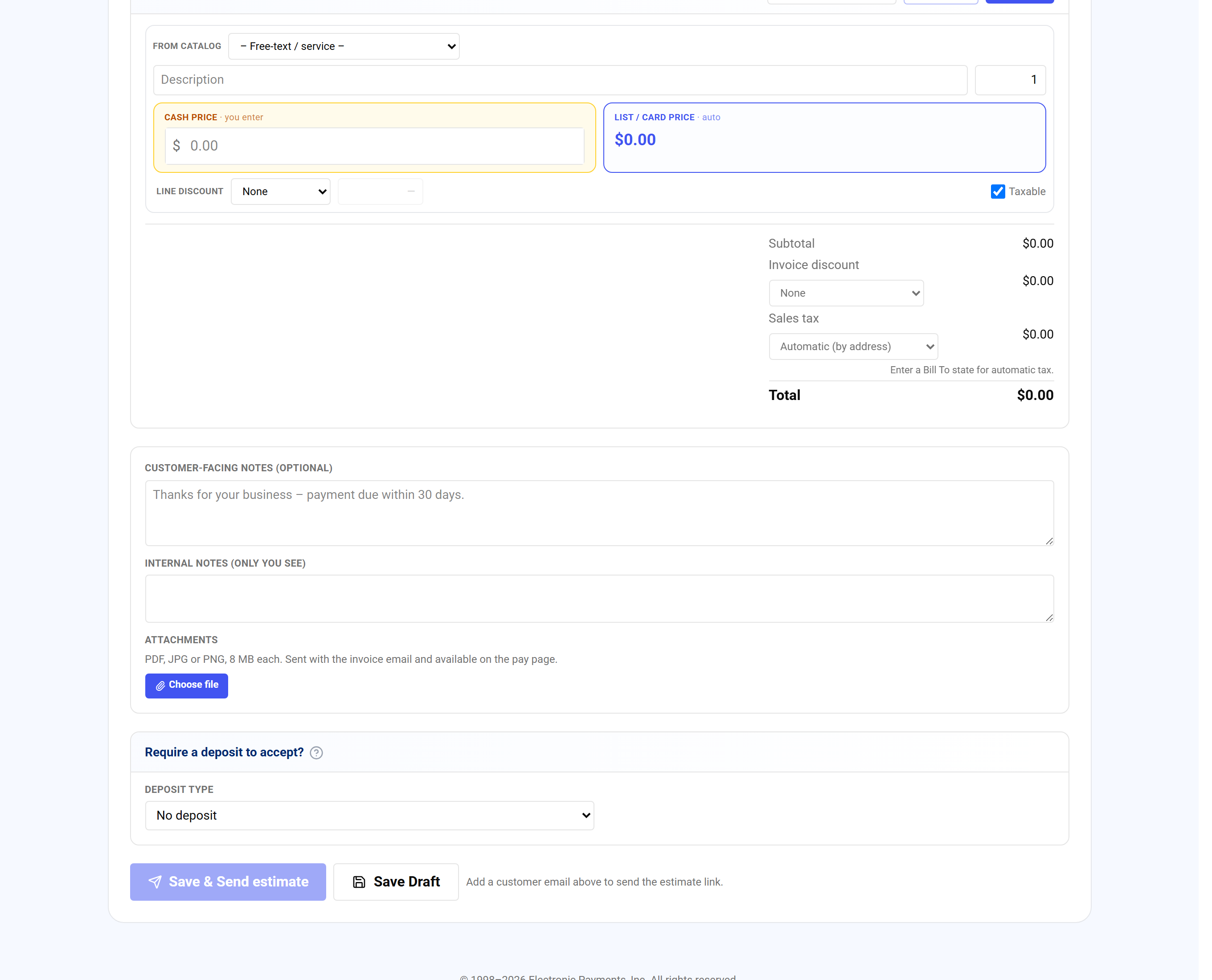
Require a deposit to accept?, then Save & Send estimate. - 6Click Save & Send estimate to email it, or Save Draft to keep working.
The estimate builder is the invoice builder with two differences: a due date that works as the date the quote is good through (the estimate marks Expired after it), and Require a deposit to accept, which collects money at the moment the customer signs. Catalog items, per-line discounts, tax from the Bill To state, and customer notes all work the same way.
Go to Accept Payments → Estimates → New estimate. Under Bill To pick or type the customer, add your line items, set the tax and the good-through date, add any notes or terms, and choose the deposit: No deposit, a Flat amount ($), Percent of total (%), or paid in full. The form shows what the customer pays to accept. Save Draft to keep working, or Save & Send estimate to email it.
Done looks like this: the estimate page opens with status Sent, the customer has an email with the estimate and a link to review and sign, and the board's Open counter goes up. Your estimate number follows the prefix set under Settings → Invoice numbering.
If Save & Send estimate is greyed out, add a customer email. If tax is zero, check the Bill To state and your Tax rates. If the customer needs a different total, edit the estimate; unlike an invoice, a sent estimate can be resent with changes.
| On this screen | What it does |
|---|---|
| Bill To | Choose existing customer or type a new one; Save as new customer keeps them in your directory. |
| Line items | From catalog or Free-text / service, with Description, Qty, Unit price, Discount, and the taxable checkbox. |
| Due date | The date the quote is good through. After it, the estimate shows Expired. |
| Tax | auto from the Bill To state, with Override and Reset to auto. |
| Customer-facing notes (optional) | Terms or scope notes shown on the estimate. |
| Require a deposit to accept? | Deposit type: No deposit, Flat amount ($), Percent of total (%), or paid in full. The form shows Customer pays X to accept. |
| Save Draft | Stores the estimate without sending. |
| Save & Send estimate | Emails the estimate with its review-and-sign link. Needs a customer email. |
| Estimate number prefix (Settings) | Under Invoice numbering & footer. New estimates number from your prefix. |
- Customer name is required.
- Type the name under Bill To, or pick a saved customer.
- Save & Send estimate stays greyed out
- The form reads Add a customer email above to send the estimate link. Add the email, or click Save Draft.
- Your role can't manage estimates.
- Your login does not have billing access. Ask the account owner.
Do this with the API:Estimates
Send it for signature
Sending emails the customer a secure link, with no login or account on their end. They review every line, the total, and your notes on a hosted page branded to your business. To accept, they agree to the electronic-signature consent, type their full legal name, and sign on-screen. Merchant360 records the signature, the name, the consent, the timestamp, and the IP address so it holds up.
- 1Save & Send estimate emails the customer a secure link. They need no login or account.
- 2They review every line, the total and your notes on a page with your business name.
- 3To accept, they agree to the electronic-signature consent, type their full legal name and sign on screen. A required deposit is paid as part of accepting.
- 4To send it again, open the estimate, type a Personal note (optional) and click Resend estimate. The page reads Estimate emailed to the customer.
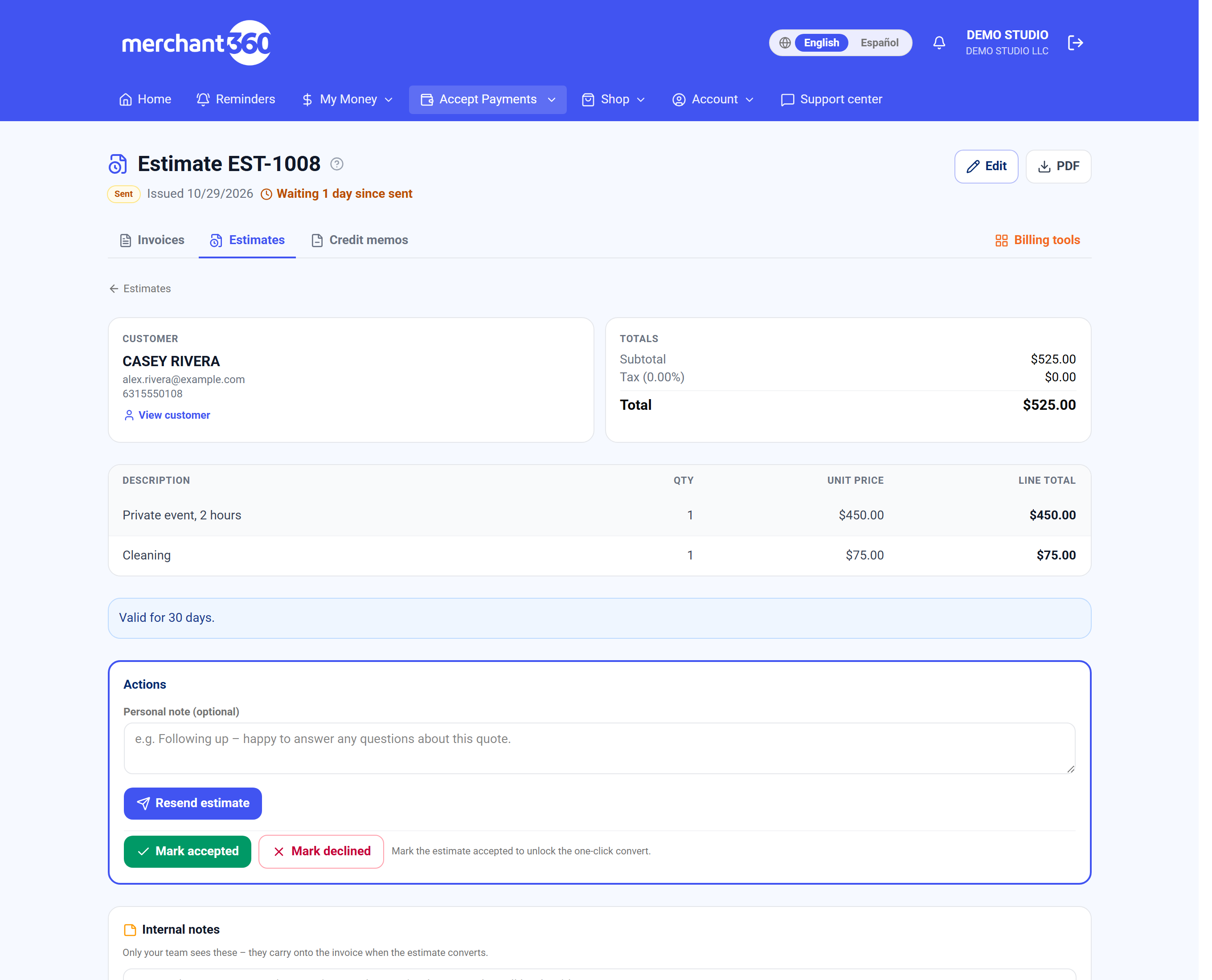
Resend estimate on a sent estimate.
If you asked for a deposit, they pay it as part of accepting, by card or (if enabled) by bank. The deposit posts to the invoice the estimate converts into, so the balance invoice they receive already shows it paid.
You can resend from the estimate page with Resend estimate, adding a Personal note that goes at the top of the email, or copy the Public estimate link and send it any way you like. The page shows how many days the estimate has been waiting since it was sent, and a follow-up reminder is emailed to you while it waits.
Done looks like this: you are notified the moment the customer accepts or declines, the estimate's status changes on your board, and the activity log records Estimate accepted & signed with the deposit if one was paid.
If the customer cannot open the link, the estimate may be Expired (past its good-through date) or Void; resend it with a new date. If the email failed, the page says so and the link is refreshed for you to copy and send yourself. Customers can decline from the same page with a reason, which shows on the estimate.
| On this screen | What it does |
|---|---|
| Resend estimate | Emails the review-and-sign link again. Personal note (optional) adds a message at the top. |
| Public estimate link / Copy link | The customer's link, to paste into a text or another email. |
| Waiting N days since sent | How long the estimate has been open. Not sent to the customer yet shows on a draft. |
| Deposit required to accept | Shown on the estimate page when a deposit is set; the customer pays it while signing. |
| Review page (customer) | Every line, the total, notes, the e-signature consent checkbox, a full legal name field, the signature pad, and the deposit payment when required. |
| Decline (customer) | Marks the estimate Declined with an optional reason you see on the page. |
- The link was refreshed but the email failed – copy the link below and send it yourself.
- Copy the Public estimate link from the estimate page and send it by text or another email.
- The customer cannot open the link
- The estimate may be Expired or Void. Edit it with a new date, or duplicate it, and send it again.
After you send it
Follow up, record the answer and turn it into an invoice.
Track, accept & convert to an invoice
The board's four counters show Open (awaiting a response), Accepted (customer approved), Declined, and All-time. Search by estimate number, customer, or email, page through, and Export CSV for your records. Each estimate carries a status: Draft, Sent, Accepted, Declined, Expired, Converted, or Void.
- 1Go to Accept Payments → Estimates. The counters show Open, Accepted, Declined and All-time.
The estimates board. - 2Click an estimate number to open it. The status sits next to the number, with Waiting N days since sent.
- 3When a customer signs online, the estimate converts by itself and View the invoice opens the new invoice.
- 4Accepted by phone or in person? Click Mark accepted, then Convert to invoice.
Mark accepted unlocks Convert to invoice. - 5If the customer says no, click Mark declined.
- 6Type team notes under Internal notes and click Save notes. They carry onto the invoice.
When a customer signs and accepts online, the estimate converts to an invoice automatically and the balance invoice is emailed to them. There is nothing more for you to do; View the invoice on the estimate page opens it.
Accepting over the phone or in person instead? Open the estimate and click Mark accepted, then Convert to invoice to create the bill. Every line carries over. Mark declined records a no. Internal notes on the estimate page are for your team only and carry onto the invoice when it converts.
Done looks like this: the estimate shows Converted, the new invoice number is linked from the estimate page, and the invoice collects payment the usual ways: a pay link, a card on file, or the Virtual terminal.
If Convert to invoice is greyed out, the estimate is not Accepted yet; use Mark accepted first. A declined or expired estimate is not a dead end: Duplicate it into a fresh draft, adjust the pricing or scope, and send a new quote. Void removes an estimate you no longer want the customer to see.
| On this screen | What it does |
|---|---|
| Open / Accepted / Declined / All-time | The board counters. |
| Search / Export CSV | Filters by estimate number, customer, or email; downloads the current list. |
| New estimate | Opens the builder. |
| Status pill | Draft, Sent, Accepted, Declined, Expired, Converted, or Void. |
| Mark accepted | Records acceptance taken by phone or in person and unlocks Convert to invoice. |
| Mark declined | Records a decline. |
| Convert to invoice | Creates the invoice with every line carried over. The estimate shows Converted and links to the invoice. |
| View the invoice | Opens the invoice an estimate converted into. |
| View customer | Opens the customer's profile. |
| Internal notes | Team-only notes with Save notes. They carry onto the invoice. |
| Duplicate | Copies the estimate into a fresh draft to revise and resend. |
| Void | Cancels the estimate and its link. |
| Activity | Created, sent, resent, accepted and signed, declined, converted, and follow-up reminders. |
- Convert to invoice is not there
- The page reads Mark the estimate accepted to unlock the one-click convert. Click Mark accepted first.
- Already converted to an invoice.
- Open it with View the invoice.
- Couldn't convert.
- Refresh the page and try again. If the estimate is Void, duplicate it and send a new one.
Do this with the API:Estimates