
Browse the guide
Messages, marketing & referrals
Talk to your EPI team in-app, turn happy customers into reviews, stay ahead of your to-dos, and earn for referrals.
Tools that keep customers coming back and keep you in touch: review requests after a customer pays, Reminders for everything that needs a follow-up, the Support page for help from Electronic Payments, and Refer & Earn.
Owners and managers who want more reviews, fewer missed follow-ups and a quick way to reach Electronic Payments.
- Review requests reach customers who paid through an invoice, a payment link or an online form, because those payments carry an email address.
- Your Google, Yelp or Facebook review page link, for review requests.
On this page
Bring customers back
Ask for reviews and keep up with what needs attention.
Review requests – turn good visits into stars
Marketing (Accept Payments → Reviews & Loyalty) has three switches. Send review requests after closed tickets emails the day's customers the morning after your batch closes. Ask for a review right after a customer pays shows a private 1 to 5 rating and your review links on the thank-you screen after an online payment. Include review links in the payment receipt email adds your links to the receipt.
- 1Go to Accept Payments → Reviews & Loyalty. The page opens on Marketing.
- 2Tick the switches you want: Send review requests after closed tickets, Ask for a review right after a customer pays, and Include review links in the payment receipt email.
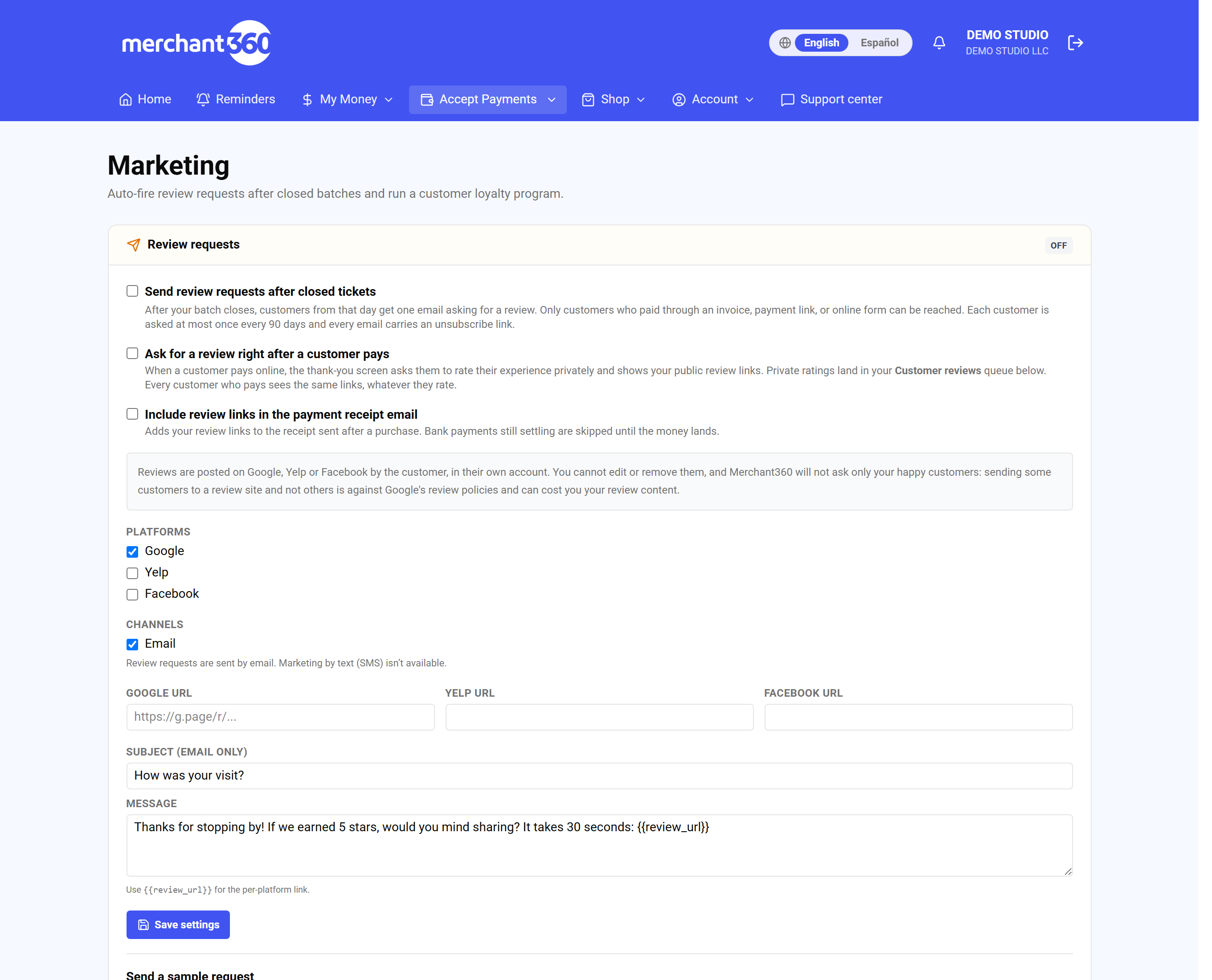
Marketing → Review requests. - 3Under Platforms, tick Google, Yelp or Facebook, and paste the matching Google URL, Yelp URL or Facebook URL.
- 4Edit the Subject (email only) and the Message. Keep {{review_url}} in the message for the link.
- 5Press Save settings. The Review requests badge reads Live while Send review requests after closed tickets is on.
- 6To see the email yourself, type your address under Send a sample request and press Queue request.
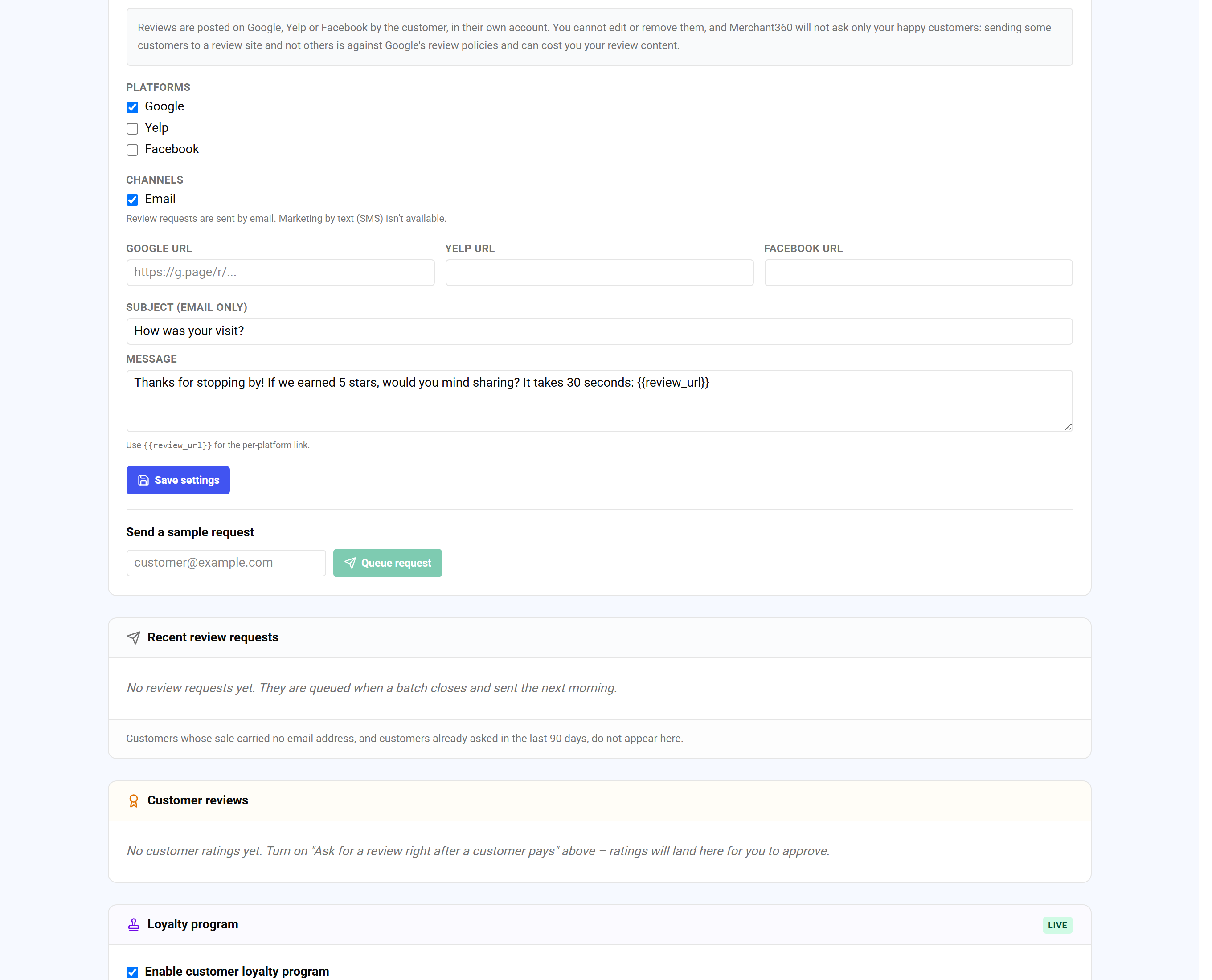
Save settings, then send yourself a sample.
Only customers who paid through an invoice, a payment link or an online form can be reached by email. Each customer is asked at most once every 90 days, and every email carries an unsubscribe link. Review requests are sent by email; marketing by text is not available.
Private ratings land under Customer reviews, where Approve and Reject are your own record. They change nothing the customer saw. Reviews are posted on Google, Yelp or Facebook by the customer, and nobody can edit or remove them from Merchant360.
| On this screen | What it does |
|---|---|
| Review requests: Live / Off | The badge that shows whether any request goes out. |
| Ask for a review right after a customer pays | Shows your review links and the private rating on the thank-you screen after invoice, payment-link, and online-form payments. |
| Send review requests after closed tickets | Emails the day's customers the morning after your batch closes, at most once per customer every 90 days. |
| Include review links in the payment receipt email | Adds your links to the receipt. Off until you turn it on. |
| Google / Yelp / Facebook URL | The pages customers are sent to. Start with Google. |
| Subject / Message | The wording of the review-request email. |
| Save settings | Applies every switch and link on the page. |
| Send a sample request | Emails you the request so you can see what customers get. |
| Queue request | Queues a request to one customer by hand. |
| Recent review requests: Queued / Sent / Unsubscribed | What went out and to whom. Unsubscribed addresses are never emailed again. |
| Customer reviews: Approve / Reject | Your private 1 to 5 ratings. Approving or rejecting is your own record keeping and changes nothing the customer saw. |
- No review requests yet. They are queued when a batch closes and sent the next morning.
- Nothing has gone out yet. Check that Send review requests after closed tickets is on and a review link is saved.
- A customer is not in Recent review requests
- Their sale carried no email address, or they were asked in the last 90 days.
- A customer shows Unsubscribed
- They opted out. They are never emailed review requests again. Receipts and invoices still reach them.
Reminders – one list of what needs attention
Reminders (in the top menu) lists everything that needs you, most urgent first: follow-ups set on customers, upcoming appointments, cards on file expiring soon and overdue invoices. There is nothing to set up.
- 1Press Reminders in the top menu.
- 2Use the chips at the top, such as overdue, to see one kind of item.
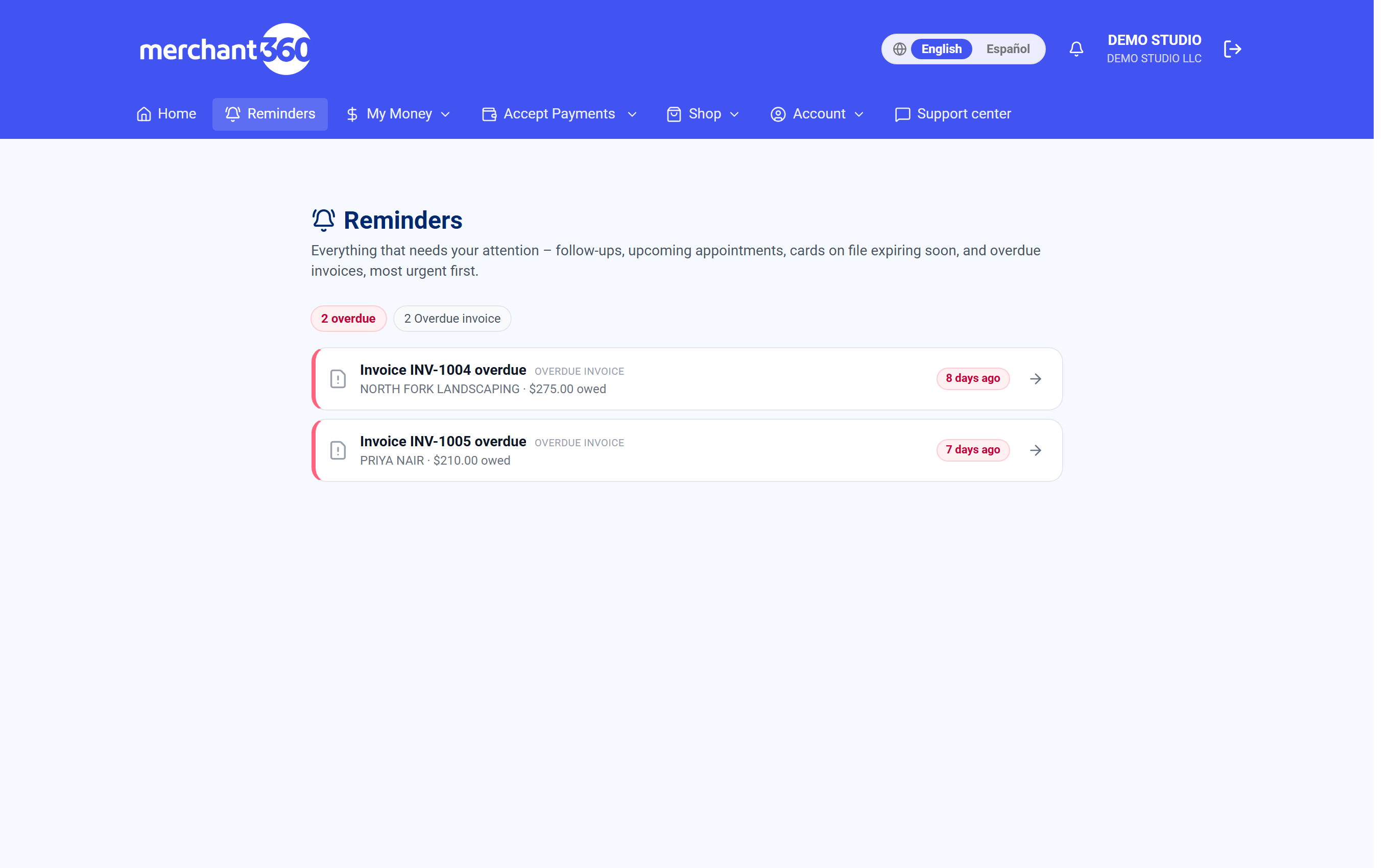
Reminders: the most urgent item on top. - 3Press the arrow on an item to open it: the customer, the appointment, the card or the invoice.
- 4Press Mark done when it is handled, or Snooze 3 days to bring it back later.
| On this screen | What it does |
|---|---|
| Follow-up | A task you set on a customer. Opens the customer. |
| Appointment | An upcoming job from Scheduling. Opens the job. |
| Card expiring | A saved card about to expire. Opens the customer so you can request an updated card. |
| Overdue invoice | An unpaid invoice past its due date, with how long it is overdue. Opens the invoice to send a reminder. |
| Mark done | Clears the item from the feed. |
| Snooze 3 days | Hides the item and brings it back in three days. |
| You're all caught up | Shown when nothing needs attention. |
- An overdue invoice was paid in cash
- Record the payment on the invoice and it drops off.
- A follow-up is missing
- Add it with New Task under Tasks & activity on the customer's profile.
Get help and refer
Reach Electronic Payments and refer another business.
Messages – your line to Electronic Payments
Support (Support center in the top menu) is where you reach Electronic Payments: Open a support ticket for anything that needs follow-up, Chat with us for the assistant or a live person during business hours, and Call us for the department directory.
- 1Press Support center in the top menu.
- 2Pick Open a support ticket, Chat with us or Call us.
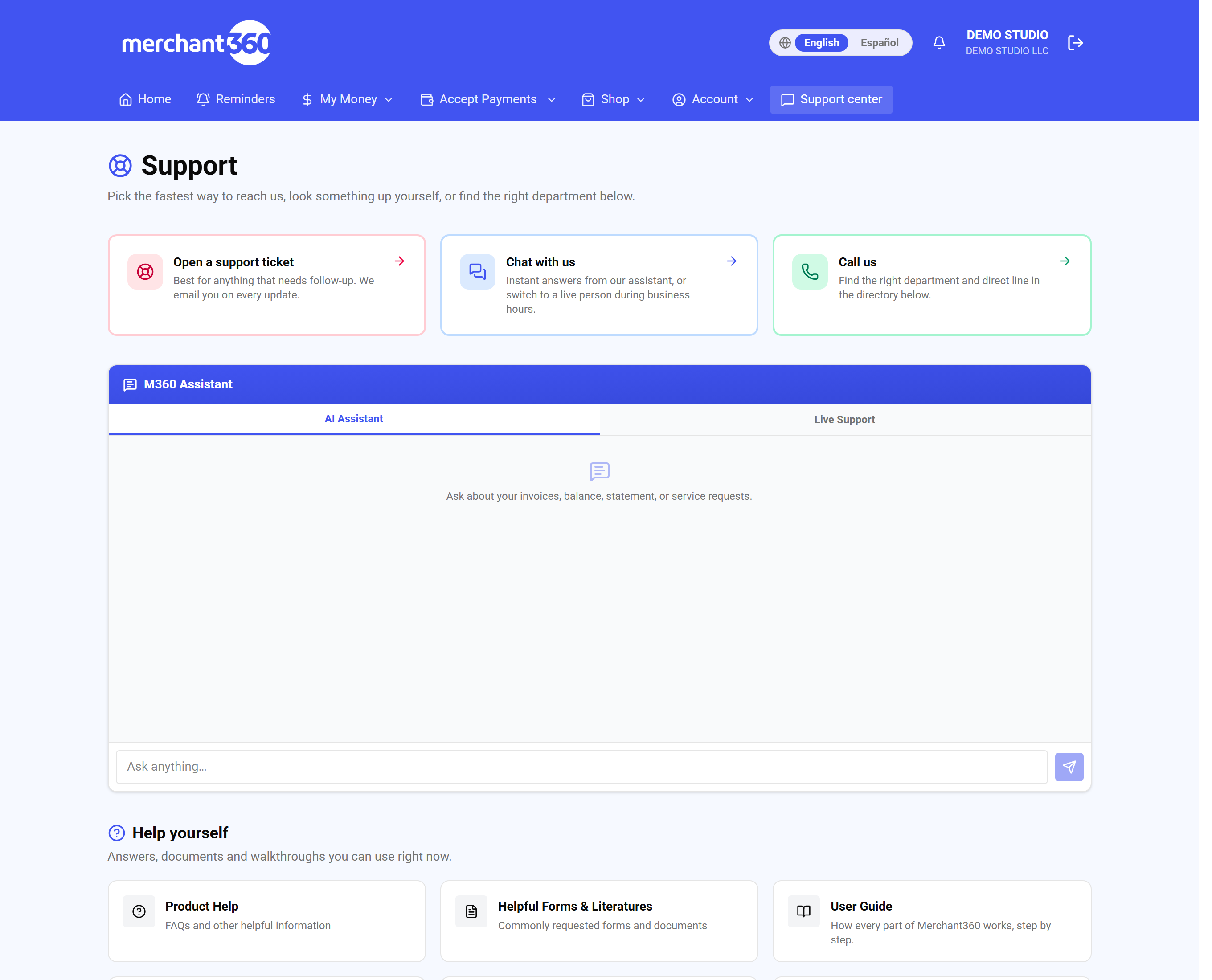
Support: a ticket, chat or a call. - 3If your agent's Messages thread is on the page, type in Type a message… and press Send. The status reads Sent.
When your sales agent has turned on chat, a Messages thread with your agent shows under Your sales agent. Replies during business hours typically arrive within 30 minutes; after hours, EPI Support handles your message.
- Failed to send.
- Check your connection and press Send again.
- There is no Messages thread
- Your sales agent has not turned on chat. Use Open a support ticket or Chat with us.
Refer & Earn
Know a business looking for a new processor? Refer it from Shop → Refer & Earn. When the business goes live, you receive a referral bonus of up to $500. The team reaches out to them within 1 to 2 business days.
- 1Go to Shop → Refer & Earn.
- 2Type the Business name (required), Contact name, Email, Phone and Website, and pick the State.
- 3Under Anything we should know?, describe the business, the right contact and their trouble with their current processor.
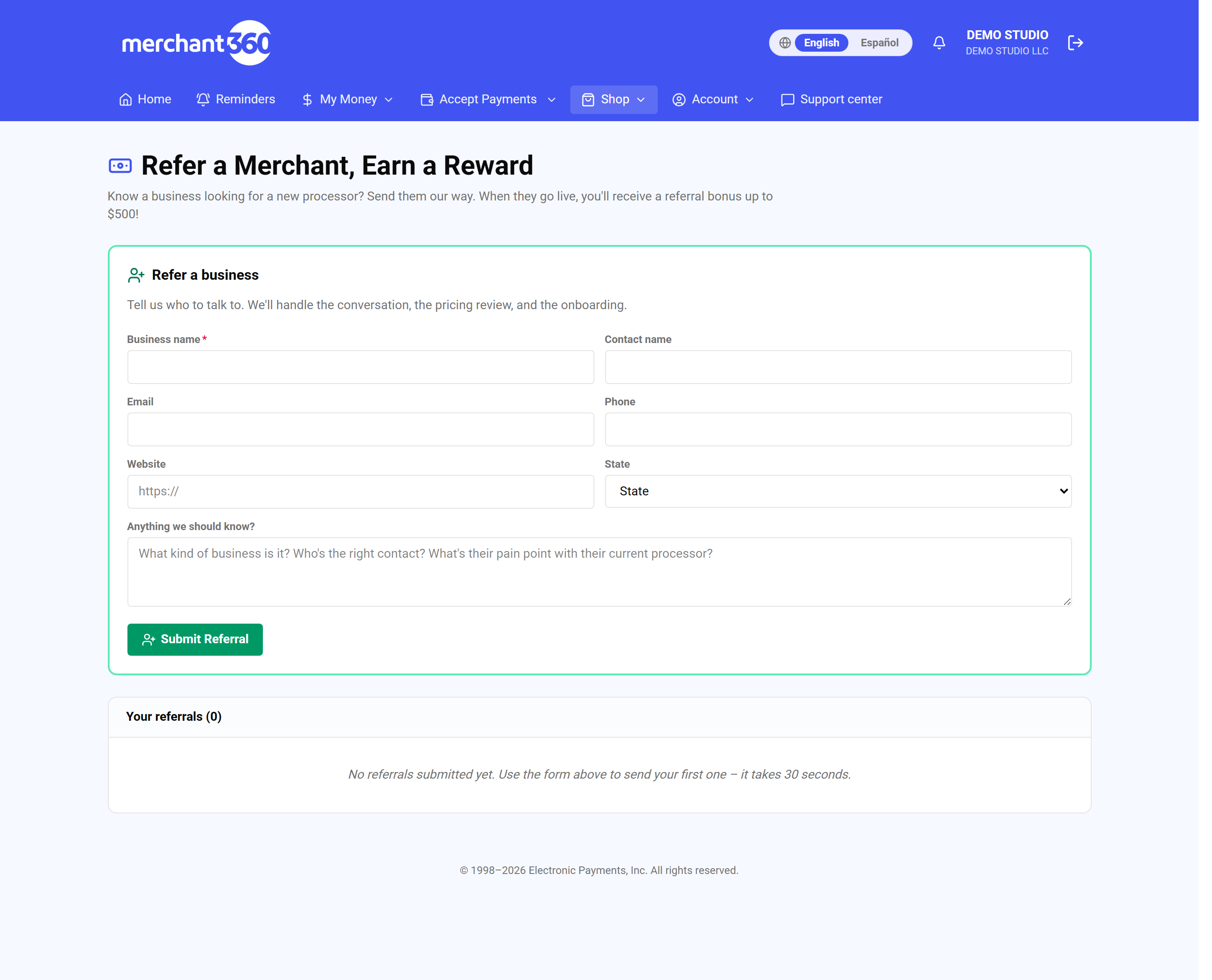
Refer a business, then Submit Referral. - 4Press Submit Referral.
- 5Follow it under Your referrals: Submitted, Contacted, Onboarding, Active, Declined or Not eligible.
| On this screen | What it does |
|---|---|
| Referrals submitted / In motion / Earned to date | The three tiles: how many you have sent, how many are being contacted or onboarding, and rewards paid so far. |
| Business name, Contact name, Email, Phone, Website, State | Who we should talk to. |
| Anything we should know? | The kind of business, the right contact, and their pain point with their current processor. |
| Submit Referral | Sends the referral. A confirmation says the team will reach out within 1 to 2 business days. |
| Your referrals: Business / Contact / State / Status / Reward / Submitted | Every referral you have sent with its current stage and reward. |
| Status | Submitted, Contacted, Onboarding, Active, Declined, or Not eligible. |
- A referral shows Declined or Not eligible
- The business chose not to go ahead or did not qualify. You can still refer others.
- Nothing has changed in a week
- Open a support ticket and name the business.