
Browse the guide
Reservations & rentals
Take a deposit at booking, charge the balance to the card on file on a date, and hold a security amount you can charge against with evidence.
A reservation takes a deposit when the customer books, charges the balance to the same card on a date you set, and places a security hold before the start that you can charge against with evidence. Rental units carry your rates, price each stay, and stop the same dates being booked twice.
Anyone who rents by the night, day or hour: cabins and rooms, boats and vehicles, equipment, studios and event space.
- Your card processing is active.
- Write your rental agreement under Reservations → Reservation settings. Customers accept it before they pay the deposit.
- Set up your rental units first, so each reservation prices itself and cannot be double booked.
On this page
Set up
Your units, rates, defaults, agreement and cancellation policy.
What a reservation is
A reservation is an invoice with three money steps. The customer pays a deposit at booking, the remaining balance is charged to the same card on a date you set, and a separate security hold is placed on the card shortly before the start date and released after the end date unless you charge against it. Use it for rentals of any kind: rooms and units, cars, boats, snowmobiles, equipment, event space.
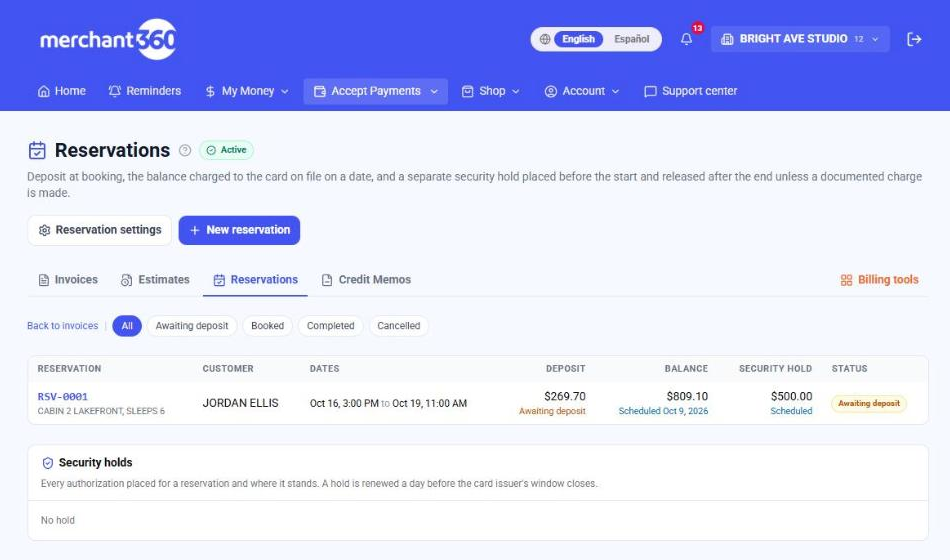
Rental units: your rate and your availability
A rental unit is the thing you rent: a cabin, a boat, a skid steer, a set of kayaks. Set it up once under Reservations → Rental units and two things happen from then on. The reservation prices itself, because the unit carries your rate and the form counts the nights, days or hours from the dates. And the unit cannot be booked twice for the same dates, because every new reservation is checked against the ones already on it.
- 1Open the Reservations tab (Accept Payments → Reservations) and click Rental units.
- 2Click Add a unit. Type the Unit name, How many you have, and a Description if you like.
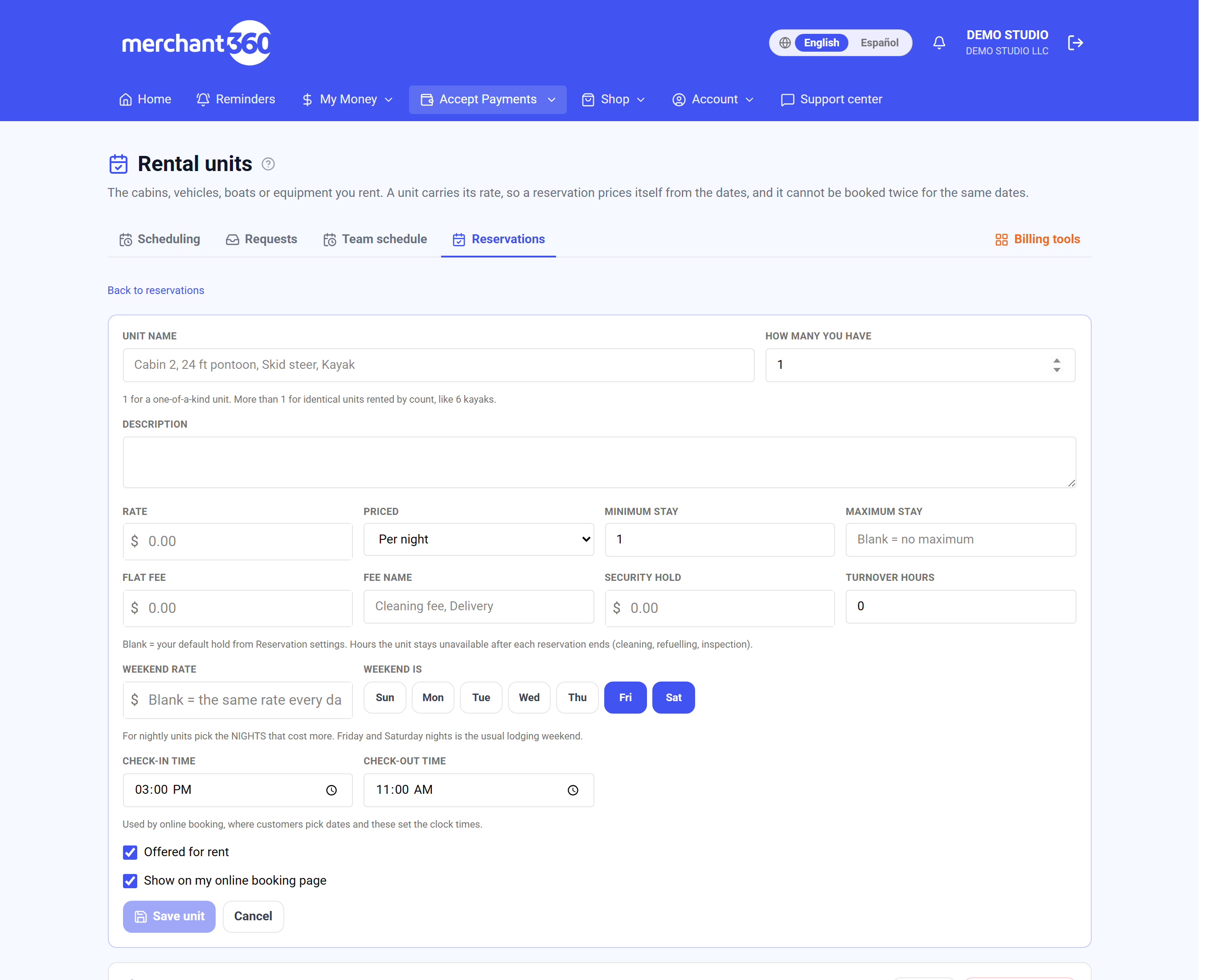
Add a unit: the rate, the stay limits and the hold. - 3Set the Rate and how it is Priced: Per night, Per day (24 hours) or Per hour. Add a Minimum stay and Maximum stay if you need them.
- 4Optional: a Flat fee with its Fee name, a Security hold for this unit (blank uses your default), and Turnover hours.
- 5For a nightly unit, set the Check-in time and Check-out time. Leave Offered for rent and Show on my online booking page ticked, then click Save unit.
- 6Under the saved unit, Add photos uploads photos, Add a season adds a seasonal rate, and Block these dates under Blocked dates takes it out of service (From, To, Reason).
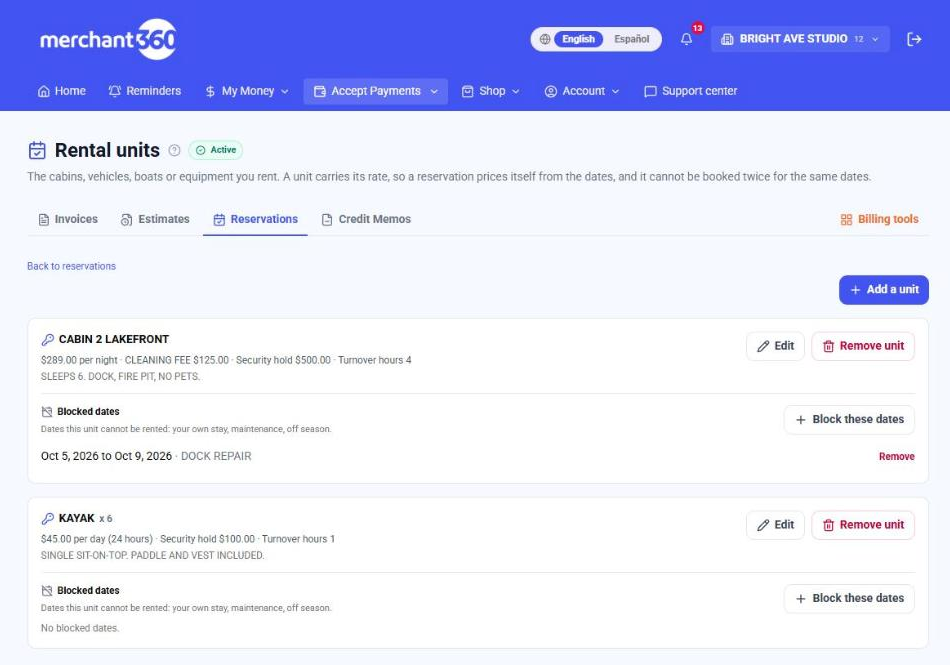
Saved units, each with its photos, seasons and blocked dates.
On the New reservation form, pick the unit first, then the dates. The reserved item, the security hold and the charge lines fill in from the unit, and a line under the dates tells you whether it is free. If it is already reserved or you blocked those dates, the form says which reservation is in the way and the Create button stays off. You can still edit the charge lines for a booking that is priced differently; once you edit one, the form stops rewriting them.
A reservation holds the unit from its start until its end plus the unit's turnover hours, so a cabin with 4 turnover hours that checks out at 11 AM cannot check in again before 3 PM. A reservation still waiting for its deposit holds the dates too, because your customer already has the link. Cancel or delete it to free them.
The Reservations page shows Availability for the next 28 days, one row per unit: open days, reserved days and blocked days, with the reservation one click away. If you use Scheduling, the same rentals appear as a Rentals strip above your appointment board for the week you are looking at. Rentals do not take a staff slot and never block an appointment.
| On this screen | What it does |
|---|---|
| Rate / Priced | Your price and what it is per. Per night counts calendar nights (Friday 3 PM to Monday 11 AM is 3 nights). Per day counts started 24-hour periods. Per hour counts started hours. |
| How many you have | 1 for a one-of-a-kind unit. For identical units rented by count, like 6 kayaks, enter the count; the form then asks how many and availability counts them. |
| Minimum stay / Maximum stay | The shortest and longest booking the unit accepts, in the same nights, days or hours as the rate. |
| Turnover hours | Time the unit stays unavailable after each reservation ends, for cleaning, refuelling or inspection. |
| Flat fee / Fee name | One fixed charge added to every reservation on this unit as its own line, such as a cleaning fee. |
| Security hold | This unit's hold amount. Leave it blank to use your default from Reservation settings. |
| Add photos | Uploads JPG, PNG or WebP photos of the unit, up to 8 per unit and 8 MB each. They show on your online booking page and on the customer's reservation page. The first photo is the cover: use Make cover or the arrows under a photo to reorder them. Type a caption under a photo (Dock at sunset, Bunk room) and it shows beneath the photo on the booking page; it saves when you click away. The small x on a photo removes it. |
| Block these dates | Takes the unit out of service for your own stay, maintenance or the off season. A block cannot be placed over dates that are already reserved. |
| Remove unit | Stops offering the unit. Reservations already made on it are kept. |
- Name the unit.
- Type a Unit name, then Save unit.
- The maximum stay cannot be shorter than the minimum.
- Raise Maximum stay or lower Minimum stay.
- … is booked inside those dates. Cancel or move it first.
- A block cannot cover a reservation. Move or cancel that reservation, or block other dates.
- Photos must be JPG, PNG or WebP. / Photos are limited to 8 MB each.
- Upload JPG, PNG or WebP photos of 8 MB or less, up to 8 per unit.
Weekend and seasonal rates
One rate is rarely the whole story. A rental unit can carry a weekend rate and any number of seasonal rates, and a reservation is priced night by night (or day by day) from them. A Thursday to Monday stay at $289 a night with a $349 weekend rate comes out as one weekday night, two weekend nights and one more weekday night, each on its own line so your customer can see how the total was built.
- 1In the unit form, type a Weekend rate and pick the days under Weekend is. For nightly units pick the nights that cost more. Click Save unit.
Weekend rate and Weekend is, in the unit form. - 2Under the saved unit, click Add a season. Type the Season name, First date, Last date and Rate, and a Weekend rate and Minimum stay if the season needs them.
- 3Click Save season. Remove deletes a season.
The weekend rate applies to the days you mark as your weekend. For a unit priced per night, mark the nights that cost more: Friday and Saturday nights is the usual lodging weekend, because those are the nights a weekend guest sleeps there. For a unit priced per day, mark the days.
A seasonal rate is a date range with its own price: July 4th week, summer, the off season. Inside a season its rate replaces the everyday rate. If you give the season its own weekend rate, that replaces your weekend rate inside the season; if you leave it blank, the season rate covers weekends too. When two seasons overlap, the shorter one wins, so a holiday week set inside a summer season is priced as the holiday week. A season can also require a longer minimum stay than the unit normally does, such as five nights over a holiday.
Units priced per hour take the rate of the day the booking starts on. Rates never change a reservation you already made: a reservation keeps the price it was booked at.
| On this screen | What it does |
|---|---|
| Weekend rate | The price for the days marked as your weekend. Leave it blank to charge the same rate every day. |
| Weekend is | The days the weekend rate applies to. For nightly units these are the nights billed, so Friday and Saturday covers a Friday to Sunday stay. |
| Add a season | Opens the season form under the unit: a name, the first and last date, the rate, an optional weekend rate and an optional minimum stay. |
| Remove (season) | Deletes the season. Dates inside it go back to your everyday and weekend rates. Reservations already made are not repriced. |
- Name the season.
- Type a Season name.
- Enter the first and the last date. / The last date cannot be before the first.
- Set First date and a Last date on or after it.
Availability at a glance
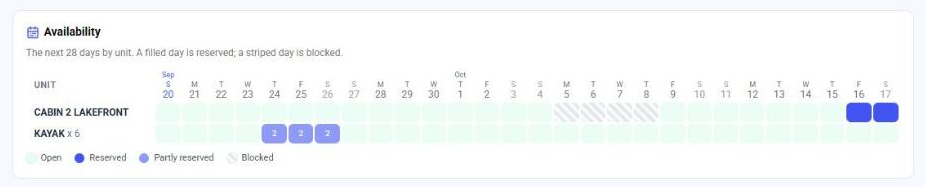
The Availability card on the Reservations page covers the next 28 days, one row per unit. A solid day is fully reserved, a lighter day with a number means that many of a multi-unit row are out, a striped day is blocked, and everything else is open. Click a reserved day to open its reservation.
A day counts as reserved when any part of it is covered, so both the check-in day and the check-out day are filled. Turnover hours are not drawn on the grid, but they are enforced when the next booking is made.
Reservation settings and your agreement
Defaults and the agreement text live under Reservations → Reservation settings. Set the card issuer window override there if your business qualifies for the 30-day window under a category other than lodging or vehicle rental.
- 1On the Reservations page, click Reservation settings.
- 2Set your defaults: Default deposit, the days before the start the balance is charged, the Default security hold, and when the hold is placed and released.
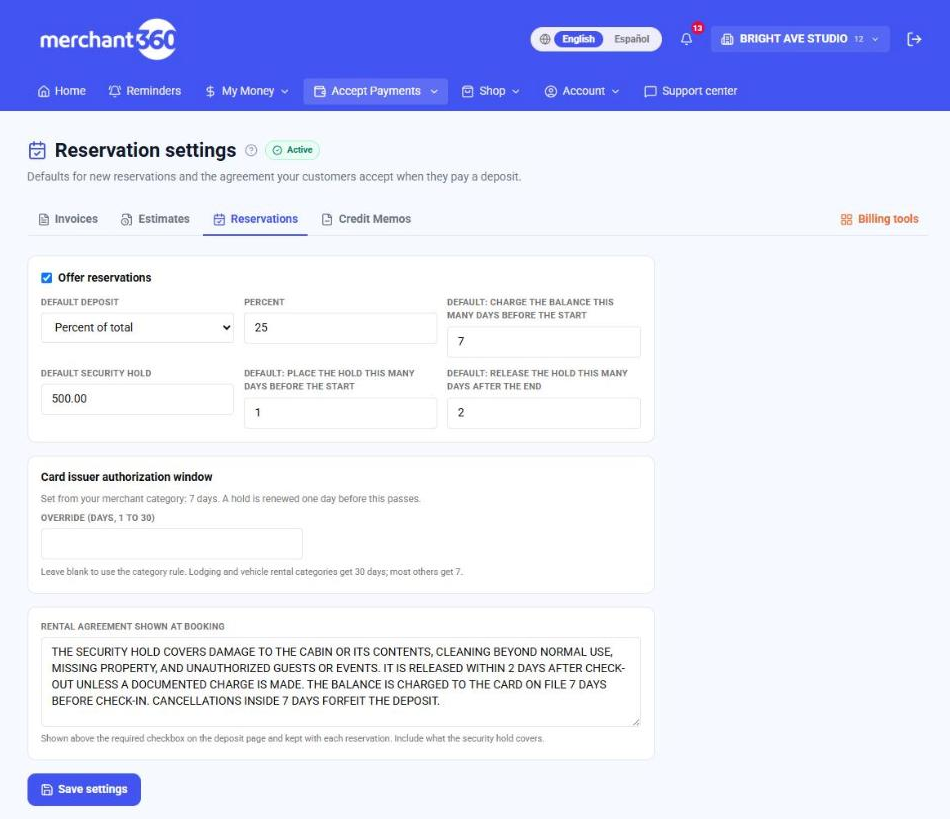
Reservation settings: your defaults for new reservations. - 3Leave Card issuer authorization window blank unless your business qualifies for a different window (1 to 30 days).
- 4Type your Rental agreement shown at booking, including what the security hold covers, and click Save settings.
Cancellation policy and refunds
You decide what a cancellation costs. Under Reservations → Reservation settings → Cancellation policy, choose one of two things. No online cancellation means customers contact you to cancel and you decide any refund when you cancel the reservation. Customers can cancel online means they can cancel from their own reservation page, and the refund depends on how far ahead they cancel.
- 1On Reservation settings, find Cancellation policy.
- 2Choose No online cancellation, or Customers can cancel online.
- 3For online cancellation, set each tier: Cancel this many days or more before the start and Refund this percent of what they paid. Add a tier adds another (up to five).
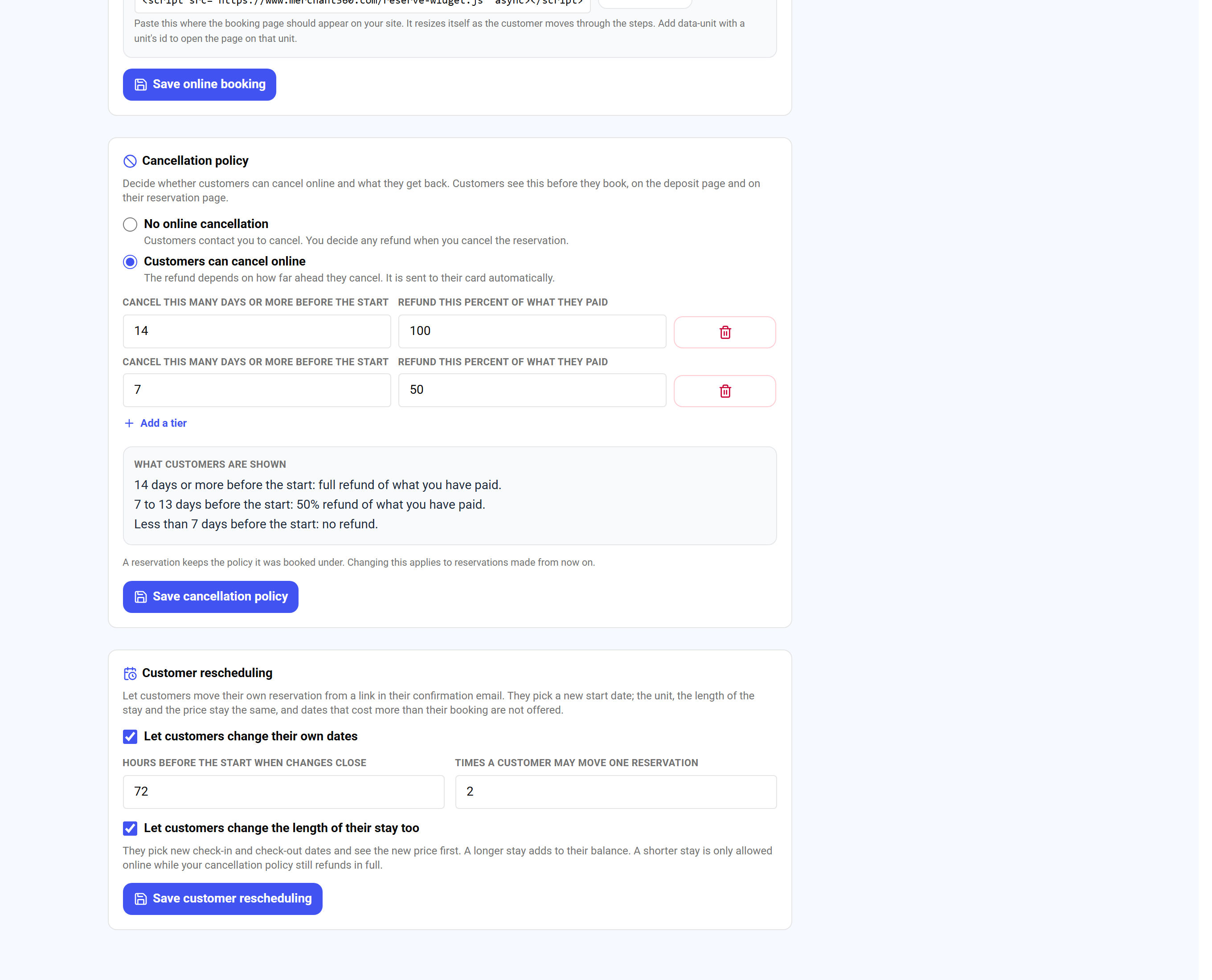
Two tiers, and the exact wording customers read. - 4Read What customers are shown, then click Save cancellation policy.
For online cancellation you write the rules as tiers: cancel this many days or more before the start, get this percent of what you paid back. Two tiers of 14 days at 100% and 7 days at 50% read to your customer as: 14 days or more before the start, full refund; 7 to 13 days, 50%; less than 7 days, no refund. A partial day does not count, so 13 days and 23 hours out is 13 days. For a non-refundable booking, allow online cancellation with no tier above 0%. The box under the tiers shows the exact sentences your customers will read.
Customers see the policy three times: on your online booking page before they book, on the deposit page above the box they tick to accept your agreement, and on their reservation page. A reservation keeps the policy it was booked under. If you change the policy in March, a customer who booked in February is still held to, and protected by, the February policy.
The refund is a percent of what the customer has actually paid so far, the deposit plus the balance if it was already charged. It goes back to the card automatically, newest charge first, and the customer gets an email saying how much. The security hold is released first. When you cancel a reservation yourself, the Cancel panel shows what the policy refunds right now and fills that amount in; you can change it to refund more, less, or nothing.
Sometimes a refund cannot be sent automatically, for example when the payment is too old to refund without the card. The reservation is still cancelled and the dates still open up. The amount is shown in red on the reservation as owed to the customer, it is on the Activity timeline, and you get an email. Send it from Transactions and it is done.
| On this screen | What it does |
|---|---|
| No online cancellation | Customers see: Reservations cannot be cancelled online. To cancel, contact the business. You handle each cancellation and its refund yourself. |
| Customers can cancel online | Adds a Cancel this reservation button to the customer's reservation page and refunds by your tiers. |
| Cancel this many days or more before the start / Refund this percent of what they paid | One tier. Add up to five. They are sorted for you, most days first. Later than your last tier refunds nothing. |
| What customers are shown | The policy written out exactly as it appears to customers. |
| Refund to the card (on the Cancel panel) | What goes back to the card when you cancel. Filled in from the reservation's policy; change it up to the amount paid, or set 0 for no refund. |
- Cancelled. … could not be refunded automatically. Refund it from Transactions.
- The reservation is cancelled and its dates are open. Refund the amount shown from Transactions.
Take a reservation
Book it yourself or let customers book online.
Create a reservation
Reservations has its own row in the Tools menu (Accept Payments → Reservations) and in the Scheduling & bookings group, a card on the Billing tools hub, and a Reservations button at the top of the Invoices and Estimates pages. Click New reservation. Enter the customer, what is reserved and the start and end times, the charge lines, and the three money settings: the deposit (a percent, a fixed amount, or the full amount), how many days before the start the balance is charged, and the security hold amount with its place and release days. The panel on the right shows exactly what the reservation will do and on which dates.
- 1On the Reservations page, click New reservation.
- 2Under Customer, type the Name, Email, Phone and address.
- 3Under What and when, pick the Rental unit (or No unit. Type what is reserved. and type the Reserved item). Set the Start and End. The form shows Free for these dates when the unit is free.
- 4Under Charges, check the lines filled from the unit's rate, or type them (Description, Qty, Unit price). Add a line adds one. Leave Tax rate (%) blank to use your automatic rate.
- 5Under Money, set the Deposit at booking (Percent of total, Fixed amount, Full amount or No deposit), Charge the balance this many days before the start, and the Security hold with the days it is placed and released.
- 6If the customer has a saved card, pick it under Charge the deposit now to a card on file. Otherwise leave Email the customer the deposit link ticked.
- 7Check What this reservation does on the right, then click Create reservation.
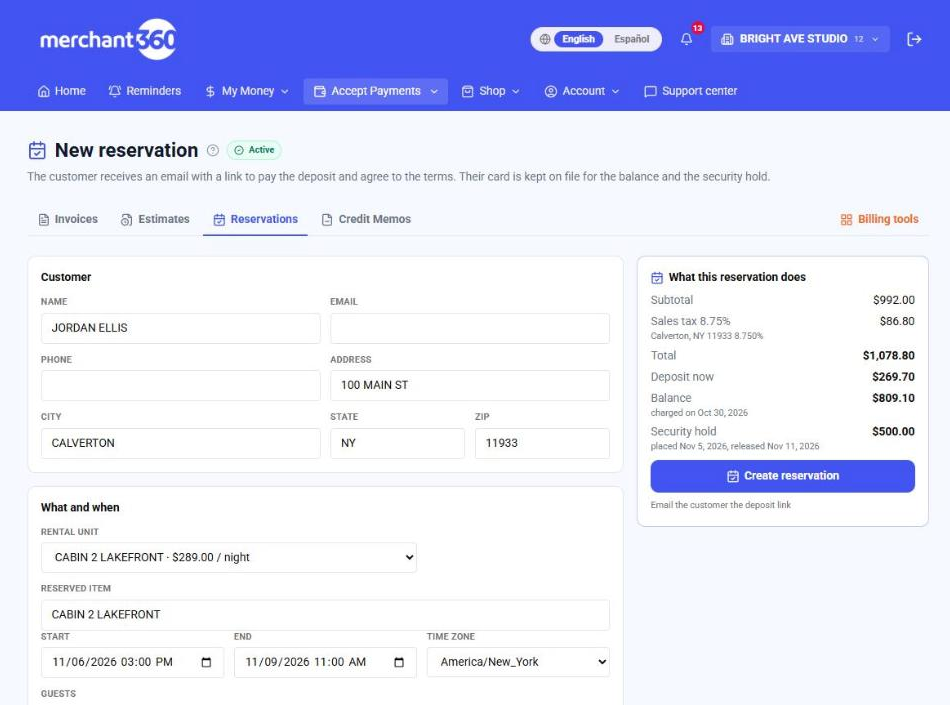
The panel on the right lists each charge and its date.
| On this screen | What it does |
|---|---|
| Rental unit | Shown once you have rental units. Picking one fills the reserved item, the security hold and the charge lines from the unit's rate, and checks that it is free for the dates. Leave it on No unit to type everything yourself. |
| Reserved item | What the customer is reserving, in your words (CABIN 2, 24 FT PONTOON, SKID STEER). It prints on the email, the pay page and the receipt. |
| Start / End | The reservation window. The balance date, the hold date and the release date are all counted from these two. |
| Add a line | Adds a charge line (nights, cleaning fee, delivery). The lines add up to the reservation total, and they become the lines of the invoice. |
| Deposit at booking | Percent of total, Fixed amount, Full amount or No deposit. This is the only amount the customer pays when they open the link. |
| Charge the balance this many days before the start | Sets the date the rest is charged to the card on file. 0 charges it on the start date. |
| Security hold | The pre-authorization amount, with the days before the start it is placed and the days after the end it is released. Leave the amount at $0.00 for no hold. |
| Charge the deposit now to a card on file | Lists the customer's saved cards. Pick one and the deposit is charged when you create the reservation; no email step. |
| Email the customer the deposit link | On by default when no card is picked. The customer gets the pay link by email. |
| Create reservation | Creates the invoice and the reservation together and opens the reservation page. |
- … is already reserved for those dates
- The unit is taken, counting its turnover hours. Pick other dates or another unit.
- … is blocked for those dates
- You blocked the unit for those dates on Rental units. Remove the block or pick other dates.
- This unit rents for at least … / at most …
- Change the dates to fit the unit's Minimum stay or Maximum stay (a season can raise the minimum).
- Add at least one line.
- Pick a unit or add a charge line.
- Reservation … was created but the deposit was declined
- The reservation exists and waits for its deposit. Send the customer the link, or try another card.
Do this with the API:Reservations
What your customer sees
The customer receives an email with a link. On that page they see the deposit due today, the balance amount and date, the hold amount and window, and your rental agreement, and they must tick the box to agree before the deposit charges. Their card is then kept on file for this reservation. If the customer's card is already on file, pick it on the form and the deposit is charged immediately with no email step.
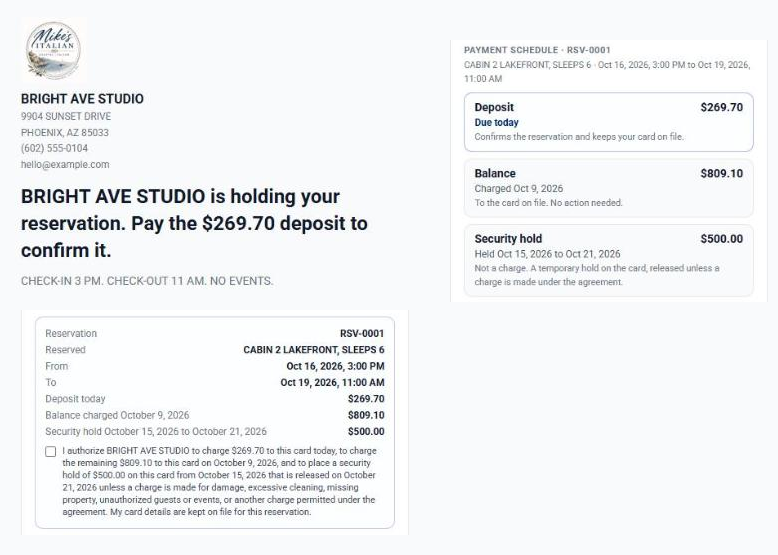
The balance and the hold run themselves
From then on the reservation runs itself. Three days before the balance date the customer gets a reminder; on the date the balance is charged and both of you get a receipt. If the card declines, the customer gets a pay link and the charge is retried on a short schedule; you are told when it gives up. The security hold is placed on its date and renewed automatically one day before the card issuer's window closes (30 days for lodging and vehicle rental categories, 7 days for most others), so it never lapses during a long stay. After the end date it is released and the customer is told.
Online booking: let customers reserve from your website
Online booking gives you a public page where a customer picks one of your rental units, picks dates on a calendar that already crosses out the days that are taken, sees the price built from your weekend and seasonal rates, and continues to pay the deposit. Turn it on under Reservations → Reservation settings → Online booking. You get a link to share and a snippet to embed the page on your own website.
- At least one rental unit, and your rental agreement saved in Reservation settings.
- 1On Reservation settings, find Online booking and tick Let customers book online.
- 2Pick Your time zone and set Minutes an unpaid online booking holds its dates (5 to 1440).
- 3Type a Message at the top of the page if you like, and click Save online booking.
- 4Under Your booking link, Copy link copies it and Open the page shows it. Under Embed on your website, copy the two lines into your site.
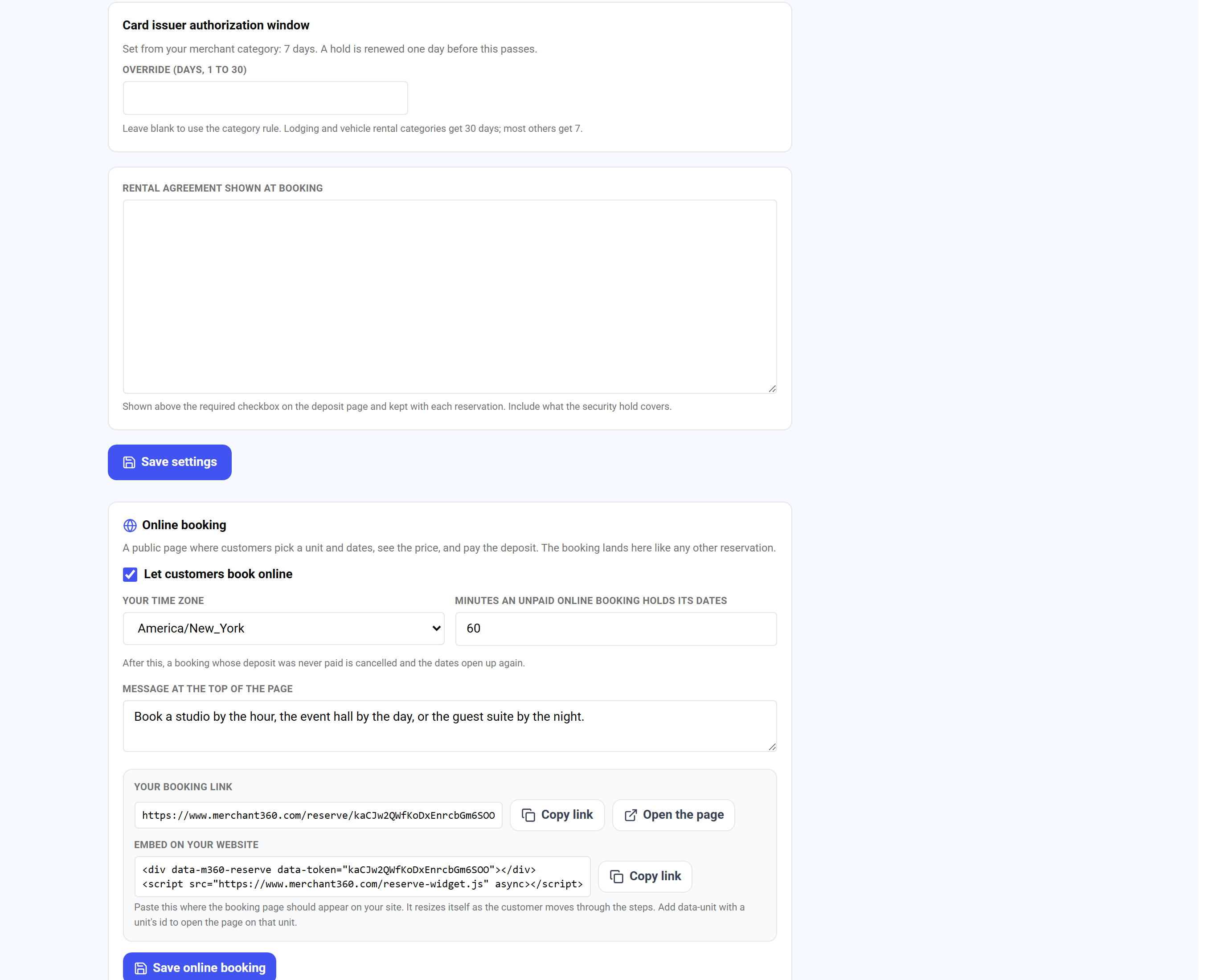
Online booking in Reservation settings.
The customer's price and payment schedule come from your settings: the deposit, the balance date and the security hold use your Reservation settings defaults, and a unit's own hold amount when it has one. Sales tax is added once they type their ZIP. When they continue, the reservation is created and they land on the same deposit page your emailed links open, where they read your rental agreement, tick the box and pay. The booking then appears in Reservations marked Booked online, and you get an email.
An online booking holds its dates only while the customer is paying. If the deposit is not paid within the time you set (60 minutes unless you change it), the booking cancels itself, its pay link stops working and the dates open up again. This is what keeps an abandoned booking, or a bot, from blocking your calendar. A reservation you create yourself is different: it holds its dates until you cancel it.
The customer is kept informed while the clock runs. When a quarter of the time is left (45 minutes into a 60 minute hold, 3 hours into a 4 hour hold, 3 days into a 4 day hold) they are emailed that the reservation will be cancelled if still unpaid, with a button to pay the deposit. If the time runs out, they are emailed that the reservation was not confirmed and the dates were released, with a Book again button and a note that you can reinstate it. On the reservation's page you see the same deadline: Booked online. The dates are held until a date and time.
Dates on the page are read in your time zone, and nightly units use the check-in and check-out times on the unit. Untick Show on my online booking page on a unit to keep it for bookings you enter yourself. The page never shows who has a unit, only that the days are taken.
| On this screen | What it does |
|---|---|
| Let customers book online | Turns the public page on. The link is created the first time you turn it on and stays the same if you turn it off and on again. |
| Your time zone | The zone customer-picked dates and check-in times are read in. |
| Minutes an unpaid online booking holds its dates | How long a customer has to pay the deposit before the booking cancels itself. 5 to 1440. |
| Message at the top of the page | A few lines customers see first: house rules, what is included, how to reach you. |
| Copy link / Open the page | Your booking link, to put in emails, texts and social profiles. |
| Embed on your website | Two lines to paste into your site where the booking page should appear. The widget sizes itself to the page as the customer moves through the steps, so there is no inner scrollbar. Add data-unit with a unit's id to open it on that unit, for a Book this cabin button on a page about one unit. Payment always opens on the full page, outside the frame. |
- Add at least one rental unit first. The page lists your units.
- Add a unit on Rental units, then come back.
- Pick a time zone.
- Choose Your time zone and save again.
Do this with the API:Reservations
Change a reservation
New dates, a different length, or a cancelled booking back.
Move a reservation to other dates
Plans change. Open the reservation and click Move dates to give it a new start and end, and if you like a different rental unit. The new dates are checked against the unit exactly the way a new booking is, so you cannot move a reservation on top of another one or into dates you blocked. The reservation's own dates do not count against it, so shifting a stay by a day or two works even when it overlaps its old dates.
- 1Open the reservation and click Move dates.
- 2Set the new Start and End, and a different Rental unit if you want one. The panel shows Free for these dates, or the reason the dates are taken.
- 3Leave Email the customer the new dates ticked to tell the customer, then click Move reservation.
Moving never changes the money. The total, the deposit already paid and the balance stay as they were, because that is the price your customer agreed to. What moves is the schedule: the balance date and the security hold's place and release dates are recalculated from the new dates, keeping the same number of days before and after. A hold that is already on the card keeps running and only its release date moves.
If the new dates would cost more or less at today's rates, the page tells you the difference after the move so you can decide what to do about it. To actually charge a different price, cancel the reservation and book it again. A reservation that is completed, cancelled, or has already had a charge made against its hold cannot be moved.
When the reservation has an email on file, the customer is sent the new dates, the previous dates and the re-dated charges. Untick the box in the Move panel to move it quietly. Every move is written to the reservation's Activity timeline with the old and new dates.
| On this screen | What it does |
|---|---|
| Move dates | Opens the Move panel on the reservation page with the current dates filled in. |
| Rental unit | Moves the reservation to another unit. The reserved item printed on emails and receipts changes to the new unit's name. |
| Email the customer the new dates | On by default when there is an email on file. The message lists the previous dates, the new dates, and the balance and hold dates. |
| Move reservation | Checks the unit one more time and saves. Disabled while the new dates are taken. |
- Only a reservation that is awaiting its deposit or booked can be moved.
- Completed and cancelled reservations cannot move. Reinstate a cancelled one first, or create a new reservation.
- A charge was already made against the hold. This reservation can no longer be moved.
- Create a new reservation for the new dates.
- These dates are no longer free
- Another booking took them while you were moving. Pick other dates.
Change the length of a stay
Moving a reservation keeps its price. When the length changes, the price should change too. Open the reservation, click Move dates, set the new start and end, and tick Re-price this stay for the new dates. Before anything happens you see the new charge lines, the current total, the new total, and what that means for the money.
- 1Open the reservation and click Move dates. Set the new Start and End on the same unit.
- 2Tick Re-price this stay for the new dates. Check the new lines, the Current total, the New total, and what is owed or refunded.
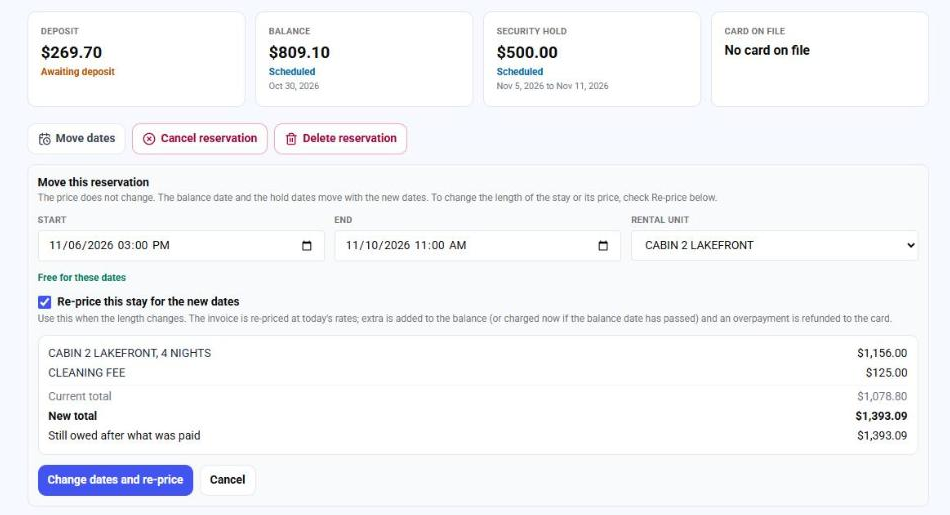
The new price, before you commit. - 3Click Change dates and re-price.
The reservation's invoice is re-priced in place at today's rates, with your weekend and seasonal rates applied night by night and the same sales tax rate the invoice already carries. Lines you added yourself, such as firewood or a late check-out, are kept exactly as billed. The customer never gets a second invoice and the deposit they paid stays on it.
A longer stay adds the difference to the balance, charged on the balance date. If the balance date has already passed, the card on file is charged right away; if it declines, the customer is emailed a link to pay and the usual retries run. A shorter stay lowers what is still owed first, and anything the customer has paid beyond the new total is refunded to their card.
Some reservations cannot be re-priced automatically: one you priced by hand rather than from a rental unit's rate, one with a discount, or one with catalog items on it. For those, cancel and book the new dates. You can also let customers change the length themselves, under Customer rescheduling. They see the new price before they confirm. A longer stay simply adds to their balance. A shorter stay is only offered online while your cancellation policy still refunds in full; after that it is a call to you, so shortening can never be used to get around your policy.
| On this screen | What it does |
|---|---|
| Re-price this stay for the new dates | In the Move panel. Shows the new lines and totals for the dates you typed and switches the button to Change dates and re-price. Leave it unticked to move the dates at the same price. |
| Change dates and re-price | Re-prices the invoice, moves the dates, balance date and hold dates, then charges or refunds the difference and emails the customer the new dates and total. |
| Let customers change the length of their stay too | In Customer rescheduling. Customers pick new first and last days instead of only a new start. |
- This reservation has a discount on it, so its length cannot be changed automatically. Cancel it and book the new dates.
- Cancel the reservation and create a new one for the new dates.
- This reservation includes catalog items, so its length cannot be changed automatically. Cancel it and book the new dates.
- Cancel the reservation and create a new one for the new dates.
- The card on file was declined for the difference. The customer was emailed a link to pay it.
- Nothing more to do now. The customer pays from the email.
Let customers change their own dates
With Customer rescheduling on, every confirmation email carries a Manage your reservation button. It opens the customer's own page for that reservation: what they booked, when, the payment schedule, a button to pay the deposit if it is still unpaid, Change your dates, and your cancellation policy with a Cancel this reservation button when your policy allows cancelling online. Turn it on under Reservations → Reservation settings → Customer rescheduling. It is off until you turn it on.
- 1On Reservation settings, find Customer rescheduling and tick Let customers change their own dates.
- 2Set Hours before the start when changes close and Times a customer may move one reservation.
Customer rescheduling, under the cancellation policy. - 3Tick Let customers change the length of their stay too if they may also pick a new length.
- 4Click Save customer rescheduling.
The customer picks one thing: a new start date. The unit, how many, the length of the stay and the check-in and check-out times stay exactly as booked, so moving three nights to the following week takes two clicks and turning three nights into five is still a call to you. Days the unit is taken are crossed out, and the move is checked against the unit the same way your own moves are, so a customer can never move onto another booking or into dates you blocked.
The price never changes on a move, so the page protects you from a cheap booking sliding into expensive dates. A date is only offered if the stay would cost the same or less there at today's rates than it does on the booked dates. Moving a weekday stay onto a holiday week, or onto weekend nights when you charge a weekend rate, is refused with a note to contact you. Moving to cheaper dates is allowed and the price stays as booked.
You set two limits. Changes close a number of hours before the start (72 unless you change it), and one reservation can be moved online a set number of times (2 unless you change it). A reservation that is completed, cancelled, or has had a charge made against its hold cannot be moved online. When a customer moves, the balance date and the hold dates move with the stay, they get the new-dates email, you get an email saying who moved and from when to when, and the move is on the reservation's Activity timeline.
| On this screen | What it does |
|---|---|
| Let customers change their own dates | Turns the Change your dates section on for your customers, and adds the Manage your reservation button to confirmation and date-change emails. |
| Hours before the start when changes close | Inside this window the customer's page tells them to contact you instead. |
| Times a customer may move one reservation | Counts online moves by the customer only. Moves you make do not count. |
| Customer's page (on a reservation) | The link to that customer's page, shown on the reservation while customer rescheduling is on. Send it to a customer who lost the email. |
Reinstate a cancelled reservation
A cancelled reservation is not gone. If the customer calls to say they still want it, or wants to pay after an online booking lapsed, open the reservation and click Reinstate reservation. It comes back with the same number, dates, price and invoice, so nothing has to be typed again.
- 1Open the cancelled reservation.
- 2Click Reinstate reservation and read what it will do.
- 3Leave the email box ticked to send the customer the link to pay.
- 4Click Reinstate reservation again to confirm.
The dates are checked again first. If someone else booked them after the cancellation, the reservation stays cancelled and you are told the dates are no longer free; create a new reservation for other dates. A reservation cannot be reinstated once its dates have started, or when money was refunded for the cancellation. In that case create a new reservation, so the record of what the customer paid stays accurate.
The invoice that was voided with the reservation is restored, and the customer pays the deposit on the same invoice page as before. Tick Email the customer that it is reinstated and they get a message with the Pay the deposit button. A balance that was still to be charged and a security hold that was still to be placed are scheduled again.
An online booking whose deposit is still unpaid gets a new hold period, starting from the moment you reinstate it, with the same warning and the same automatic cancellation if it is not paid. A reservation you created yourself does not lapse on its own.
| On this screen | What it does |
|---|---|
| Reinstate reservation | Shown on a cancelled reservation whose dates have not started and that had no refund. |
| Email the customer that it is reinstated, with the link to pay | Sends the customer the reinstatement notice and, when the deposit is unpaid, the pay button. |
| Reinstated (activity) | The entry recorded on the reservation, with who did it. |
- The reserved dates have already started. Create a new reservation for new dates.
- Create a new reservation.
- Money was returned when this reservation was cancelled. Create a new reservation instead.
- Create a new reservation, so the record of what was paid stays right.
- These dates are no longer free
- Someone booked them after the cancellation. Create a new reservation for other dates.
Holds and claims
Charge against the hold and follow every authorization.
Charge against the hold
To charge for damage, excessive cleaning, missing property, unauthorized guests or events, or another charge the agreement allows, open the reservation and click Charge against the hold. Enter the amount (up to the hold), pick the reason, describe what happened, and attach photos or receipts. The amount is captured from the hold, the rest of the hold is released, and the customer receives a receipt naming the reason and listing the documentation on file. A hold can be charged once.
- 1Open the reservation and click Charge against the hold.
- 2Type the Amount to charge (up to the hold) and pick the Reason.
- 3Describe What happened. It goes to the customer on the receipt.
- 4Add Photos and documents, then click Charge the hold.
- There is no live security hold to charge against.
- The hold was not placed yet, or it was released. Use Place the hold now if the reservation is booked.
- Enter the amount to charge. / Pick a reason. / Describe what the charge is for.
- Fill in the amount, the reason and what happened.
- The most you can charge against this hold is …
- Lower the amount to the hold.
- Files are limited to 25 MB.
- Attach smaller files.
The reservation page and the Security holds report
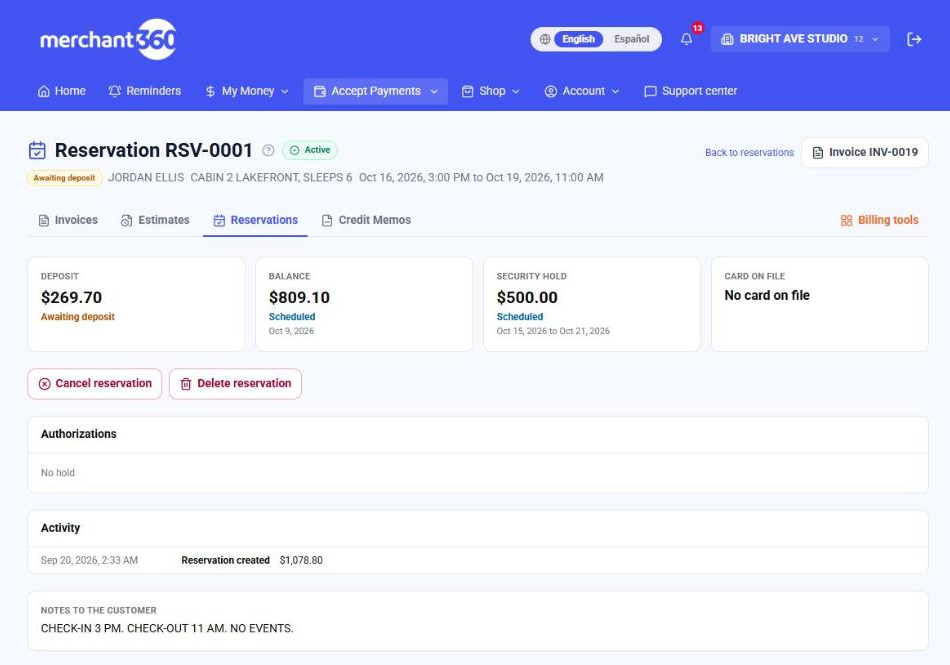
Everything is on the reservation page: the three legs and their status, the card on file and the agreement the customer accepted with its timestamp, every authorization placed for the hold (when it was placed, when it renews, when the issuer window ends), claims with their evidence, and a timeline of every step. The Reservations list also has a Security holds report across all reservations. Charge the balance now, place or release the hold now, waive the balance, or cancel from the same page. Cancelling releases any live hold and waives the balance; refund the deposit from the invoice if your agreement calls for it.
| On this screen | What it does |
|---|---|
| Charge the balance now | Charges the remaining balance to the card on file today instead of waiting for the balance date. |
| Place the hold now | Places the security hold today instead of waiting for its date. |
| Release the hold | Reverses the live authorization. The customer is told the hold is gone. |
| Charge against the hold | Opens the claim form. One claim per hold; whatever you do not charge is released. |
| Move dates | Moves the reservation to other dates or another unit. The price does not change; the balance date and the hold dates move with it. |
| Waive the balance | Marks the balance as not owed, with your reason. Nothing is charged on the balance date. |
| Cancel reservation | Releases any live hold, waives the balance and voids the invoice if it is unpaid. A paid deposit stays paid until you refund it from the invoice. |
| Delete reservation | Shown only while no money has moved: no deposit paid, no hold placed, no claim. Removes the reservation and its invoice. |
- No card on file for this reservation.
- The deposit has not been paid with a card yet. The customer pays from the deposit link first.
- Only a booked reservation has a balance to charge.
- The deposit is still unpaid, or the reservation is completed or cancelled.