
Browse the guide
Winning chargebacks
A chargeback is an accusation with a deadline – here's the evidence that beats each kind, and how to send it.
A chargeback is a claim the cardholder made to their bank, with a deadline. This chapter explains how to read the reason code, which evidence wins each kind of dispute, how to send it from Merchant360, and when to accept the case instead.
Owners and managers who answer disputes, and anyone who handles refunds, deliveries or subscriptions.
- Chargeback & retrieval alerts is on under Account → Account Settings → Automated Email Settings, so you hear about a case the day it arrives.
- Your records are kept: receipts, delivery confirmations, signed orders and message threads. Evidence made after the dispute does not count.
- Only the account owner can accept a chargeback.
On this page
- "I didn't make this charge" – fraud (Visa 10.4, MC 4837)
- "I never received it" – not received (Visa 13.1)
- "I cancelled that subscription" – cancelled recurring (Visa 13.2, MC 4841)
- "It's not what was described" – quality disputes (Visa 13.3, MC 4853)
- "Where's my refund?" and "I was charged twice" (Visa 13.6, 12.6.1)
Understand the dispute
What the bank is claiming and how long you have.
What is a chargeback, really?
A chargeback is a claim the cardholder made to their own bank. The bank takes the money back from you while it asks you to respond, so a chargeback is not a verdict. You win by answering the specific claim with the specific evidence that disproves it, before the deadline.
Three things decide most cases: whether your evidence answers the actual reason code rather than a general defense, whether it arrives on time, and whether your records existed before the dispute. Delivery confirmations, signed receipts, and message threads cannot be created after the fact.
Everything in this chapter maps to how Merchant360 works the case for you. Open the case under Money → Chargebacks and the reason-code panel shows the same evidence list for the exact code you were hit with, plus the response strategy and the issuer's time window. The reason-code library, linked from the Chargebacks page, lets you look any code up before you gather documents.
A retrieval request is not a chargeback. The issuer is asking for a copy of the sales receipt, no money has moved, and uploading the receipt by the due date can stop it from turning into one. Never refund because of a retrieval.
Want this next to the register? The printable one-page checklist carries every family's evidence list as literal checkboxes. Print it, keep it, and hand it to whoever opens the mail.
If you received a chargeback email but see no case on the page, check the Processor chargebacks & reversals list at the bottom for the settled record, and message the chargeback team from any case if something looks wrong.
| On this screen | What it does |
|---|---|
| Active / Closed | The case lists on the Chargebacks page. Active cases still need work; closed cases show Won, Lost, or Accepted. |
| Reason-code guide | Opens the library of reason codes with what each needs to win. Search by code, label, or evidence, and print the checklist from there. |
| Evidence checklist (PDF) | Downloads the one-page checklist by dispute family. |
| Evidence needed for this reason code | Panel on every case: Required Evidence, Response Strategy, the network Rule, and the Issuer window in days. |
| RETRIEVAL | Pill marking a retrieval request. Upload a copy of the receipt; do not refund. |
Read the reason code first
Every chargeback carries a reason code, the cardholder bank's official claim. Visa, Mastercard, Amex, and Discover each have their own codes, but they all fall into a few families: fraud ("I didn't make this charge"), consumer disputes ("I didn't get what I paid for"), processing errors ("I was charged twice or the wrong amount"), and authorization problems.
- 1Open My Money → Chargebacks and click Reason-code guide – what each code needs to win →. Inside a case, What this reason code means → opens the same guide.
- 2Pick the card brand: Visa, Mastercard, Discover or Amex.
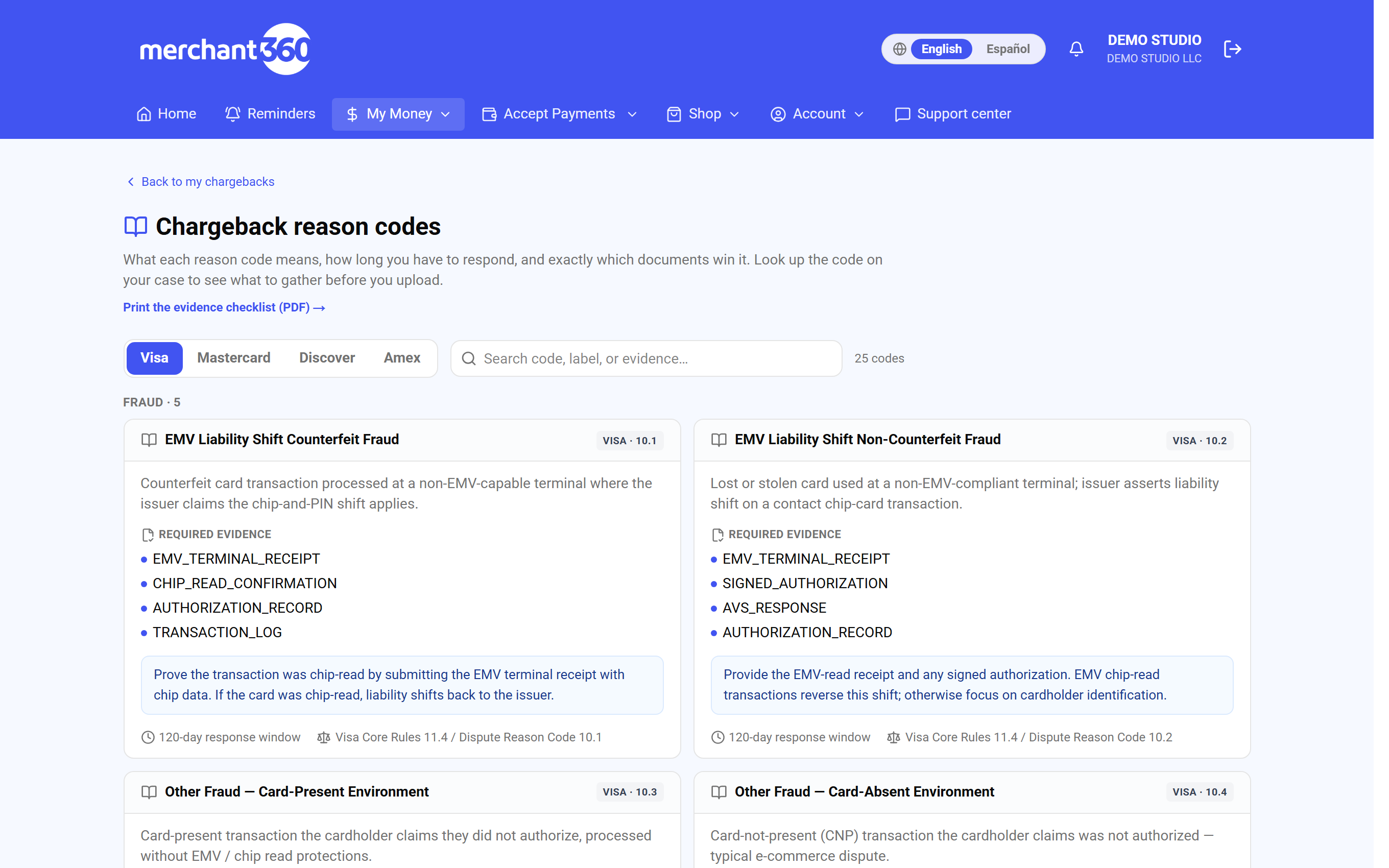
The reason-code guide: pick a brand, search, and read what each code needs. - 3Type a code, a label or an evidence type in Search code, label, or evidence…. The count of codes updates as you type.
- 4Read the code's card: what the claim means, REQUIRED EVIDENCE, the response strategy, the response window and the network rule.
- 5Click Print the evidence checklist (PDF) → for the one-page checklist. Back to my chargebacks returns to your cases.
The reason code decides your entire response. Delivery proof wins a not-received case and does nothing for a cancelled-recurring case; a cancellation log is decisive for recurring and irrelevant to fraud. Answer the claim that was actually made.
Merchant360 decodes the code for you in two places. On the case page, the reason-code panel shows what the bank is claiming, the issuer's time window, the required evidence, and the response strategy. The reason-code library (Chargebacks → Reason-code guide) holds every code so you can look one up before you open the mail, search by code, label, or evidence, and print the checklist.
You are ready when you can say in one sentence what the bank claims and which two or three documents disprove it. If the code on your case is not in the library, message the chargeback team from the case and they will tell you what the issuer wants.
| On this screen | What it does |
|---|---|
| Search code, label, or evidence | Filters the reason-code library as you type. The count of matching codes updates beside it. |
| Reason code card | For each code: the network, what the claim means, how long you have to respond, and exactly which documents win it. |
| Print the evidence checklist (PDF) | Opens the printable one-page checklist. |
| Back to my chargebacks | Returns to the Chargebacks page. |
| What this reason code means | Link on a case that jumps to that code in the library. |
The clock is part of the case
Cardholders generally have up to 120 days to dispute (75 for some authorization codes). Your window to respond is much shorter and it is printed on the case: the Due column on the Chargebacks page and the Response Due date in Dispute Details are the single most important numbers there.
Respond early, not at the buzzer. Evidence that arrives after the window is evidence that does not exist, no matter how good it is. Awaiting evidence is the one status that is on you, and if we do not hear from you by the due date the case is accepted in the cardholder's favor.
The chargeback and retrieval alert email is the earliest warning you get. Keep it turned on under Account → Settings → Automated email reports, and add whoever opens your mail to its recipients.
If a due date is close and you are still gathering documents, upload what you have now and message the team; partial evidence on time beats complete evidence late.
| On this screen | What it does |
|---|---|
| Due | Column on the Chargebacks page: the date your response must be in by. |
| Response Due | The same date inside Dispute Details on the case, with the note that earlier evidence improves the odds. |
| Issuer window | In the reason-code panel: how many days the issuer allows for this code. |
| Chargeback & retrieval alerts | The automated email under Account → Settings that tells you the moment a case arrives. |
Evidence that wins each kind
The documents that answer each family of reason codes.
"I didn't make this charge" – fraud (Visa 10.4, MC 4837)
This is the most common family for card-not-present merchants. The cardholder claims the charge was not theirs. Your job is to show the real cardholder made it, or knowingly benefited from it.
Evidence that wins:
- AVS match and CVV match results from the sale. Merchant360 keeps these on the transaction, and the authorization record document type is where they go on the case.
- Proof you shipped to the AVS-matched billing address: tracking plus delivery confirmation, uploaded as delivery proof and tracking number.
- The customer's IP address, device, or account activity tied to the order, uploaded as a transaction log.
- Any communication with the customer about the order (emails, texts, the invoice thread), uploaded as a communication log.
- Prior undisputed purchases from the same customer. Visa's Compelling Evidence 3.0 rule lets two earlier undisputed transactions from the same device, IP, or account defeat a fraud claim outright. This is the strongest card you can play with a repeat customer; export the earlier sales from Transactions and upload them.
For card-present sales, an EMV chip read or signed receipt usually ends the conversation, because a chip transaction shifts fraud liability off you. Upload the signed receipt as a signed authorization.
If none of this exists, for example a keyed sale with no AVS, no shipping record, and no message thread, accepting the case avoids paying the fee on top of the loss.
| On this screen | What it does |
|---|---|
| Authorization record | Document type for the sale's AVS and CVV results and approval details. |
| Delivery proof / Tracking number | Document types for carrier tracking and delivery confirmation to the billing address. |
| Transaction log | Document type for IP, device, or account activity tied to the order. |
| Communication log | Document type for emails and texts with the customer. |
| Signed authorization | Document type for a signed receipt or signed order form. |
"I never received it" – not received (Visa 13.1)
The cardholder says the goods or services never arrived. This is the most winnable family if you kept delivery records.
Evidence that wins:
- Tracking showing delivery to the verified address. Signature confirmation is the gold standard. Upload it as delivery proof and add the tracking number.
- For services: completion records such as appointment logs, timestamps, before and after photos, and the signed work order. Upload photos and logs as delivery proof and the work order as a signed authorization.
- The communication trail. A customer who emailed you about using the product has conceded receipt; upload the thread as a communication log.
If the item genuinely did not arrive because the carrier lost it, refund promptly instead of fighting. A lost representment costs the amount and the fee. Do the refund from Transactions, then accept the case so the customer is not credited twice.
| On this screen | What it does |
|---|---|
| Delivery proof | Document type for the carrier's delivery confirmation, ideally with signature. |
| Tracking number | Document type for the tracking reference itself. |
| Signed authorization | Document type for a signed work order or completion sheet. |
| Communication log | Document type for the message thread that shows the customer had the product. |
"I cancelled that subscription" – cancelled recurring (Visa 13.2, MC 4841)
The cardholder says a recurring charge continued after they cancelled. Timing is the whole case.
Evidence that wins:
- Your cancellation log showing no cancellation request existed before the billing date, or that it arrived after. Upload it as a cancellation log.
- The terms the customer agreed to at signup (billing cycle, cancellation window). Merchant360 subscriptions record the enrollment, and the plan's terms are stored with it; upload them as terms & conditions.
- The communication trail around any cancellation conversation, uploaded as a communication log.
If they did cancel before the charge and it billed anyway, refund it; that case is lost on arrival. Prevention: make cancelling easy and confirm it by email. A customer who cannot reach you calls their bank instead. In Merchant360, cancel or pause the subscription under Recurring so the next cycle does not bill.
| On this screen | What it does |
|---|---|
| Cancellation log | Document type for your record of cancellation requests and dates. |
| Terms & conditions | Document type for the billing terms the customer accepted at signup. |
| Communication log | Document type for the cancellation conversation. |
| Recurring → Pause | Stops future cycles on the subscription so the dispute does not repeat next month. |
"It's not what was described" – quality disputes (Visa 13.3, MC 4853)
The cardholder says the product or service was defective or not as advertised. These turn on your own listings and policies.
Evidence that wins:
- Your product description or service scope as advertised, matched against what was delivered. Upload it as a product description.
- The receipt and any inspection or condition records, uploaded as an itemized receipt.
- Your return policy, and whether the customer attempted a return or gave you a chance to resolve it. A cardholder who never contacted you or returned the item weakens their own claim substantially. Upload the policy as terms & conditions.
- The communication trail, always, as a communication log.
If the customer did contact you and you offered a fix they refused, say so in the response letter; the drafter uses your documents, so upload the offer email too.
| On this screen | What it does |
|---|---|
| Product description | Document type for the listing, quote, or scope of work as advertised. |
| Itemized receipt | Document type for the receipt and any condition or inspection record. |
| Terms & conditions | Document type for your return and refund policy. |
| Communication log | Document type for the customer's messages and your replies. |
"Where's my refund?" and "I was charged twice" (Visa 13.6, 12.6.1)
Credit not processed: the customer says you promised a refund that never came. If you did refund, the processing record with date, amount, and the ARN (the network's reference number) ends the case; find the refund in Transactions, download its receipt, and upload it as a refund receipt. Support can pull the ARN if you need it. If no refund was promised, submit your return policy and the communication showing why.
Duplicate processing: the bank sees two similar charges. Either prove they were two real, separate purchases with two receipts and two authorization codes, both visible in Transactions, or refund the duplicate the moment you spot it. Fighting a genuine duplicate only adds a fee to the loss.
Authorization-family codes (like Visa 11.3, "no authorization") are the one family that is usually unwinnable: if no valid authorization exists for the settled amount, the case is effectively conceded. These almost never occur on Merchant360 because every sale runs a real-time authorization.
If you refund the duplicate after the chargeback arrived, tell the chargeback team the date and amount in the case chat so the customer is not credited twice.
| On this screen | What it does |
|---|---|
| Refund receipt | Document type for the receipt of a refund you already issued. |
| Transactions → Receipt | Downloads the PDF receipt for a sale or refund, showing the date, amount, and approval code. |
| Itemized receipt | Document type for each of two separate purchases. |
| Chat with EPI chargeback team | Where to report a refund you issued after the case opened, with its date and amount. |
Do this with the API:Refunds & voids
Respond in Merchant360
Upload, draft, approve, or accept.
Fighting the case in Merchant360, step by step
The case page holds everything: the claim, the evidence list, the letter drafter, the upload box, the accept option, the documents on file and the chat. Work it top to bottom.
- 1Open the case from the banner, or click Open on its row under My Money → Chargebacks. The alert at the top reads Your merchant account has received a chargeback. Do not refund the customer.
- 2Read Dispute Details: Case Number, Reason, Card, Amount, Transaction Date, Received, Response Due and Issuer Note. The panel Evidence needed for this reason code lists the Required Evidence and the Response Strategy.
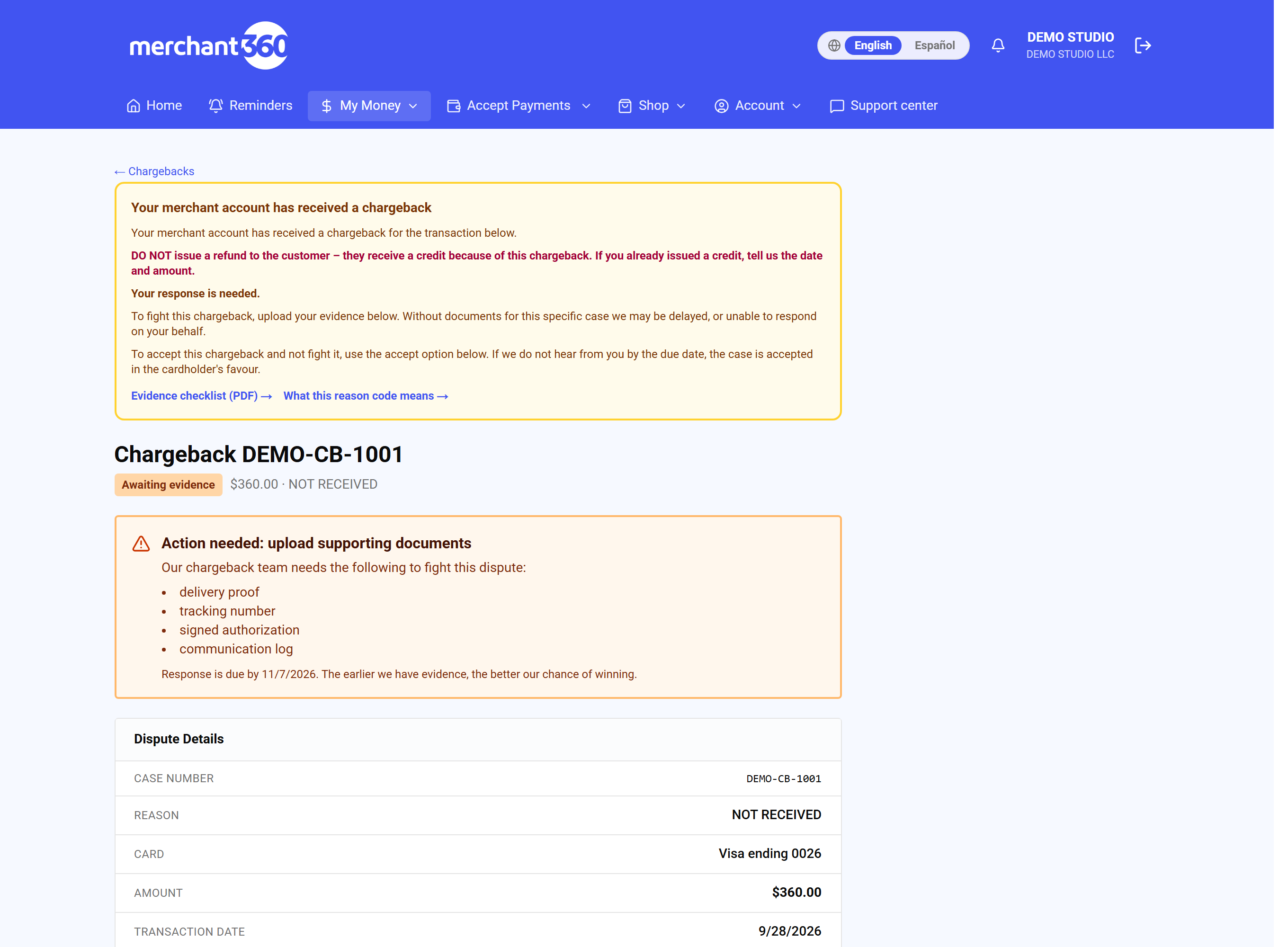
The case: the alert, Dispute Details and Evidence needed for this reason code. - 3Under Upload Evidence, pick a Document type, click Choose evidence and pick the file (a PDF, or a PNG, JPG, HEIC or WEBP image). Click Upload Evidence. The page reads Uploaded – our team has been notified. Repeat for each file.
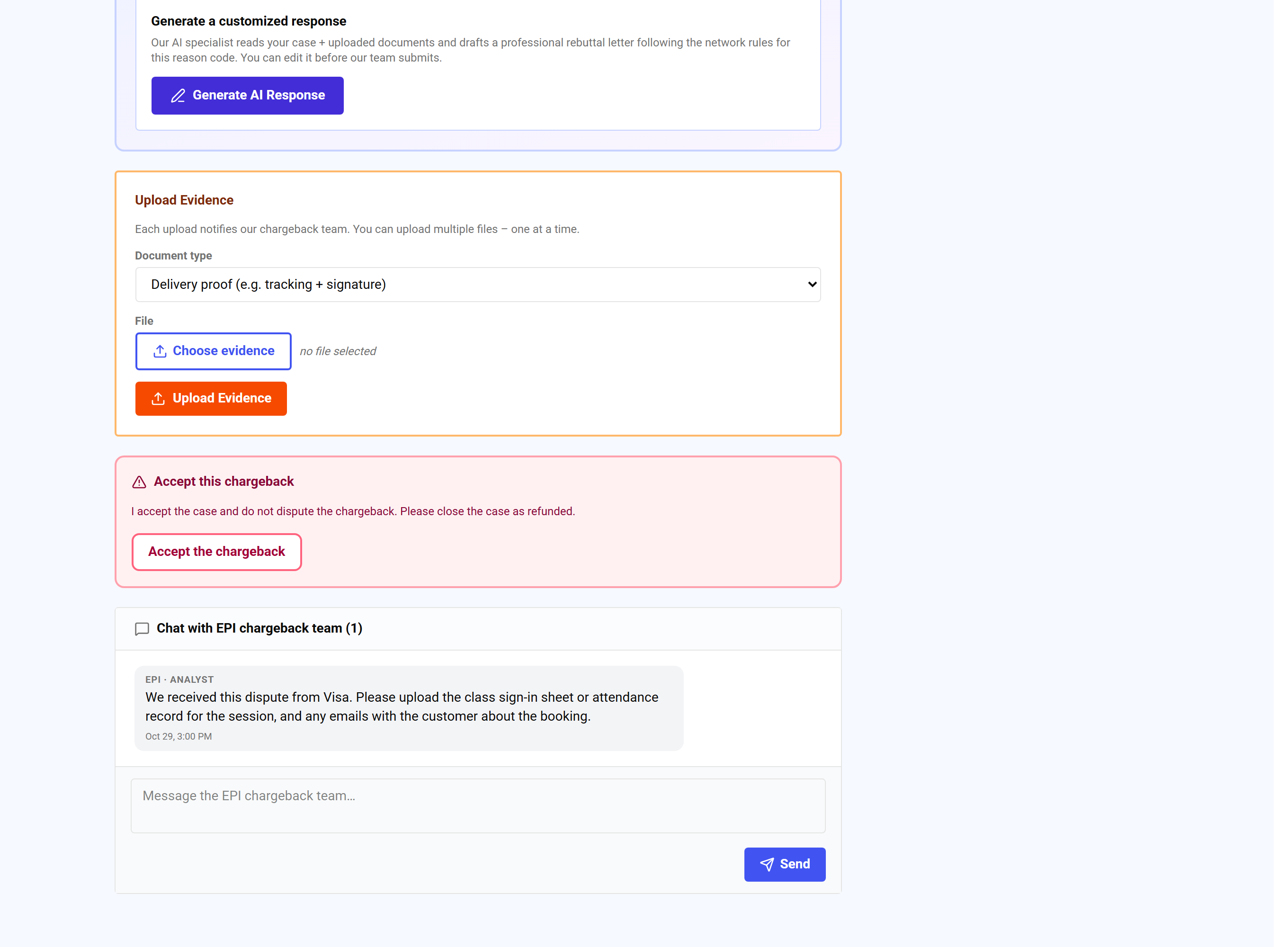
Upload Evidence: one file at a time, under the matching Document type. - 4In the AI Response Drafter, click Generate AI Response. Read the Response Letter, edit it, and click Save edits.
- 5Click Preview submission packet and check the PDF, then click Approve & send to EPI. The case moves to Responded.
- 6To ask our team something, type in Chat with EPI chargeback team and click Send.
Upload the documents on the reason-code checklist as PDFs or images (PNG, JPG, HEIC or WEBP). Each upload is one file under one document type, and every upload notifies the chargeback team.
The AI Response Drafter reads the case and your uploads and drafts the letter for the reason code. It shows how complete the case looks and lists what to upload for a stronger case. You edit, save, preview the packet and approve. Our team submits it.
Done looks like Responded, then Won or Lost. If you approve and then find another document, upload it and message the team.
| On this screen | What it does |
|---|---|
| Upload Evidence | Document type list plus a file chooser. One file per upload; repeat for each document. |
| Generate AI Response | Drafts the letter. Shows completeness, confidence, evidence cited, the network rule, and recommended actions. |
| Save edits / Re-draft from scratch | Saves your edits to the letter, or discards the draft and generates a fresh one. |
| Preview submission packet / Download latest preview PDF | Builds the packet PDF for review and opens the latest one. |
| Approve & send to EPI | Sends the approved letter and documents to our team to submit. The letter shows APPROVED with the date. |
| Chat with EPI chargeback team | Ask a question or report new facts about the case. |
- Pick a file to upload.
- Click Choose evidence and pick a file before you click Upload Evidence.
- This chargeback is already closed.
- The case reached Won, Lost or Accepted. Nothing more can be uploaded.
- Generate a draft first.
- Click Generate AI Response before you preview or approve the packet.
- Response narrative is too short.
- Add to the letter, then click Save edits again.
- Respond directly to Fiserv – not in this portal
- The processor handles this case. Fax your response and documents to the number on the mailed notice, with the case number on every page. Upload and accept are not available on these cases.
When to fight and when to accept
Fighting is not always the right business decision. Weigh the disputed amount against the chargeback fee, your time, and your odds, which are good when you hold the specific evidence and poor when you do not.
- 1Open the case and scroll to Accept this chargeback.
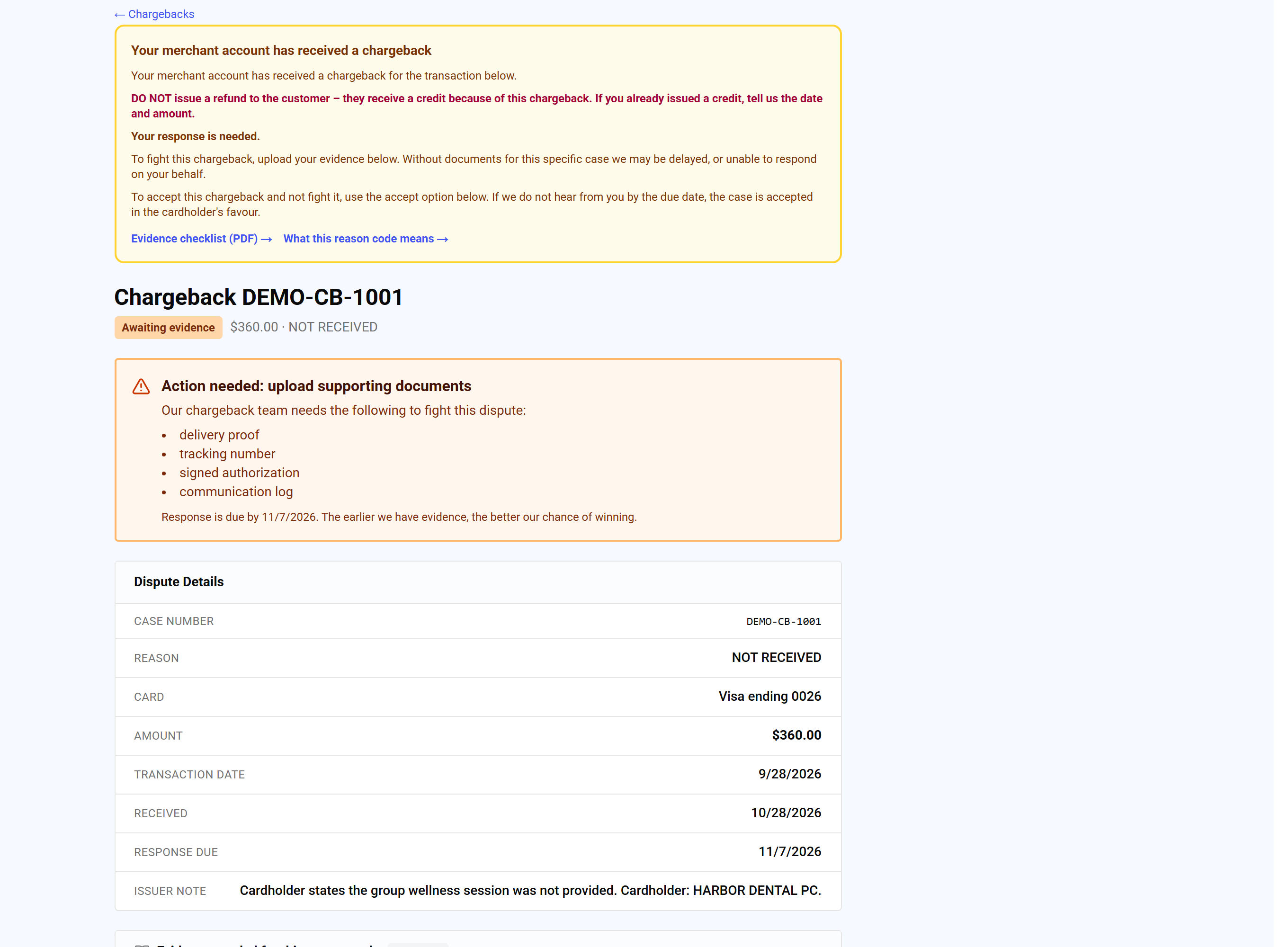
Accept this chargeback, set apart from the evidence tools. - 2Click Accept the chargeback. The panel asks Are you sure? and states that the case closes and you cannot reply further.
- 3If your account requires a code, type the code from the text in Enter the code we texted.
- 4Click Yes – accept and close the case. To keep the case open, click Cancel – I want to fight it.
Accept when the customer is right, when the evidence does not exist, or when the amount is smaller than the effort.
Accepting is done on the case, in the Accept this chargeback panel. It asks Are you sure? and explains that the case closes and you cannot reply further. When your account requires a code, it texts one to your mobile first. The case ends as Accepted. Do not also refund the customer; they were already credited by the chargeback.
Watch your count, not just each case. Card brands monitor chargeback rates. The Processor chargebacks & reversals list on the Chargebacks page shows your settled chargebacks by year.
| On this screen | What it does |
|---|---|
| Accept the chargeback | Starts acceptance on the case. |
| Are you sure? | Confirmation: the case closes, you cannot reply further, and the amount stays with the cardholder. |
| Enter the code we texted | Shown when your account requires a code to accept. Type the code sent to your mobile. |
| Yes – accept and close the case | Closes the case as Accepted. |
| Cancel – I want to fight it | Backs out and leaves the case open. |
- Only the account owner can accept a chargeback.
- Ask the owner to sign in and accept it.
- No mobile number on your login, so we can't text a code. Call 1-800-966-5520, Option 4.
- Call the number shown, or add a mobile number to your login under Login/Account Security.
- Enter the code we texted you.
- Type the code from the text, then click Yes – accept and close the case.
- This case has already been accepted.
- Nothing more to do.
Prevent the next one
Habits that stop disputes, and the card brand rules on fees.
The prevention playbook
Every prevented chargeback is worth more than a won one: no fee, no time, no ratio impact.
- Clear receipt descriptor: most "fraud" disputes are really "I didn't recognize the name on my statement." Your business name on receipts comes from your business profile.
- Answer messages fast: cardholders call their bank when the merchant goes quiet.
- Refund fast when something goes wrong. A refund costs the sale; a chargeback costs the sale plus the fee plus the ratio. Refund from Transactions in one click.
- Delivery confirmation on everything shipped, with signature over a threshold you choose.
- Recurring: easy cancellation, an email confirmation when it happens, and a reminder before renewal. Manage subscriptions under Recurring.
- Keyed and online sales: let AVS and CVV do their job; they are also your evidence later. Fraud tools under Billing tools lets you set the checks that decline risky sales before they become disputes.
If your chargeback count is rising, look at which reason family repeats in the Closed list; the family tells you which habit above to fix.
| On this screen | What it does |
|---|---|
| Transactions → Refund | Refunds a sale before the customer goes to their bank. |
| Fraud tools | Settings that screen keyed and online sales before they are approved. |
| Recurring | Where subscriptions are paused, cancelled, or edited so renewals do not surprise the customer. |
| Processor chargebacks & reversals | Your settled chargeback history by year, with a net total, for watching the trend. |
Card Brand Compliance: a Visa compliance notice
Visa continues to enforce their Brand Rules and Marketing Guidelines. The card brands send secret shoppers to businesses that add fees to card payments: the shopper buys an item with a debit card and the same item with cash and photographs the signage, prices and receipts. If the purchase broke the rules, you get a compliance notice by email and a case under Money → Card Brand Compliance.
- 1Open My Money → Card Brand Compliance. With no open case, the page reads There are no compliance cases on your account.
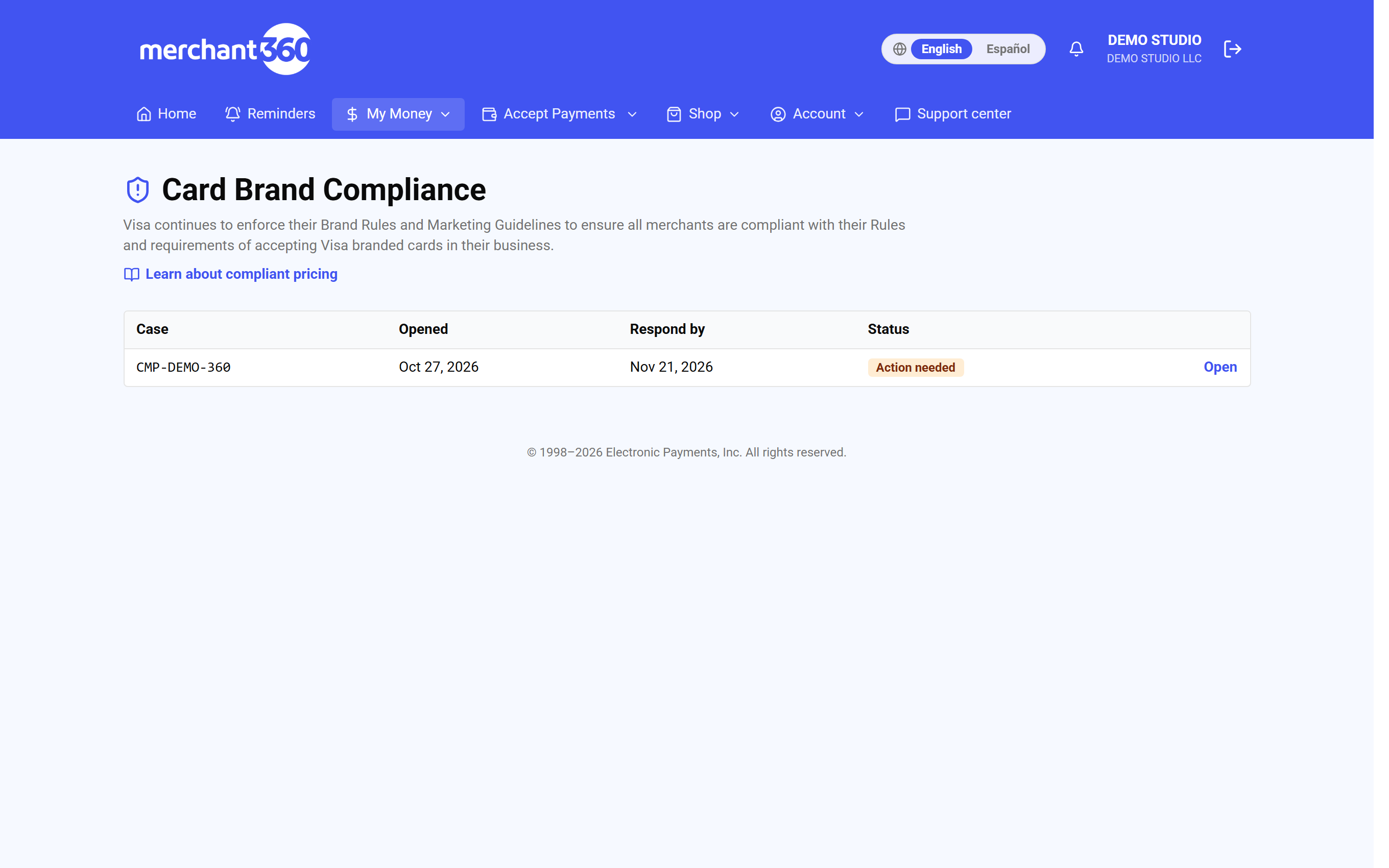
Each case shows when it opened, when to respond and its status. - 2Click Learn about compliant pricing for the Fee Programs guide.
- 3If you have a case, open it to see what the review found, how to fix each finding, and the reviewer's photos and receipts. Send what it asks for by the due date.
The rule in short: a business may not add a fee to a card payment, or charge more for paying by credit or debit card than by cash, except through a card brand compliant program. Debit cards can never carry a surcharge, even when run as credit.
Open the case to see what the review found, how to fix each finding, and the reviewer's photos and receipts. Then, by the due date: stop adding fees and remove the fee settings from your equipment (your agent and our team help), remove the fee signage, sign the Surcharge Violation Notice and the Merchant Attestation of Card Brand Rule Compliance right on the case (or sign the PDFs by hand and upload them), and upload a Visa receipt showing no fee plus a cash receipt for the same item.
A non-compliance assessment is applied to the account for a confirmed violation, and an unanswered notice can lead to further fines and closure of the account. The Fee Programs guide at merchant360.com/fee-programs explains each program, what a debit card is, the approved signage and receipts, and every violation with its fix.